Create a graphical view
This tutorial shows you how to use Centreon MAP to give your operations teams and business users a real-time overview of the status of your IT infrastructure.
With Centreon MAP, you create and share graphical views of your infrastructure, network, applications and services directly from the Centreon web interface. For instance, a view can show the availability of your critical business applications at a glance, so that teams react faster in case of an outage and restore services sooner.
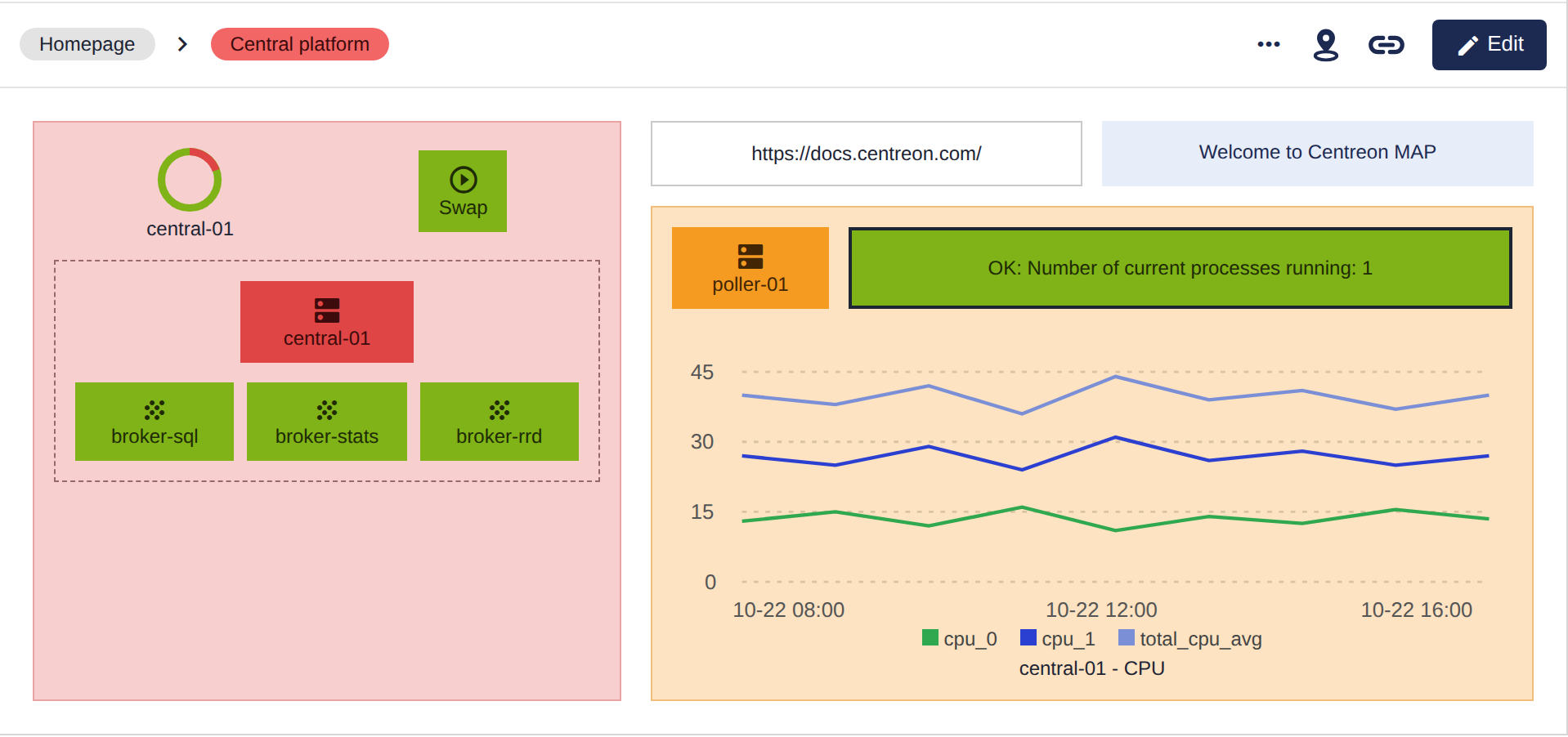
By the end of this tutorial, you will know how to:
- Create a standard map and build it with the MAP editor.
- Create a geographic view.
- Display your maps and share them with the right users.
Centreon MAP is a Centreon extension that requires a valid license. To purchase one and retrieve the necessary repositories, contact Centreon.
Before you start
Check that you can create maps
To create maps, you must be a Centreon administrator or belong to an access group that is granted the creator role. If you can see the Add a Map button on the Monitoring > Map page, you are allowed to create maps. Otherwise, ask your administrator to grant you the creator role.
Define the objective of your map
Before you start building, define what the map is for. Here are some questions you can ask yourself:
- Who will use this map, and what do they need to see?
- What level of detail do they need: a global status, or the status of each server, service or network link?
- Are all the resources and indicators you need already monitored in Centreon?
- What should the map contain: resources, performance graphs, network links, images, etc.?
Create a standard map
A standard map is a diagram of your infrastructure, in which each element displays the real-time status of the resource it represents.
Create the map
- Go to Monitoring > Map.
- In the Standard maps section, click Add a Map.
- Enter a Name for the map. Optionally, fill in the Geo coordinates (in the
Latitude, Longitudeformat) if you want to add this map to a geographic view later, and select an Image to illustrate the map in the list of maps. - Click Add.
The new map opens in the MAP editor.
Discover the MAP editor
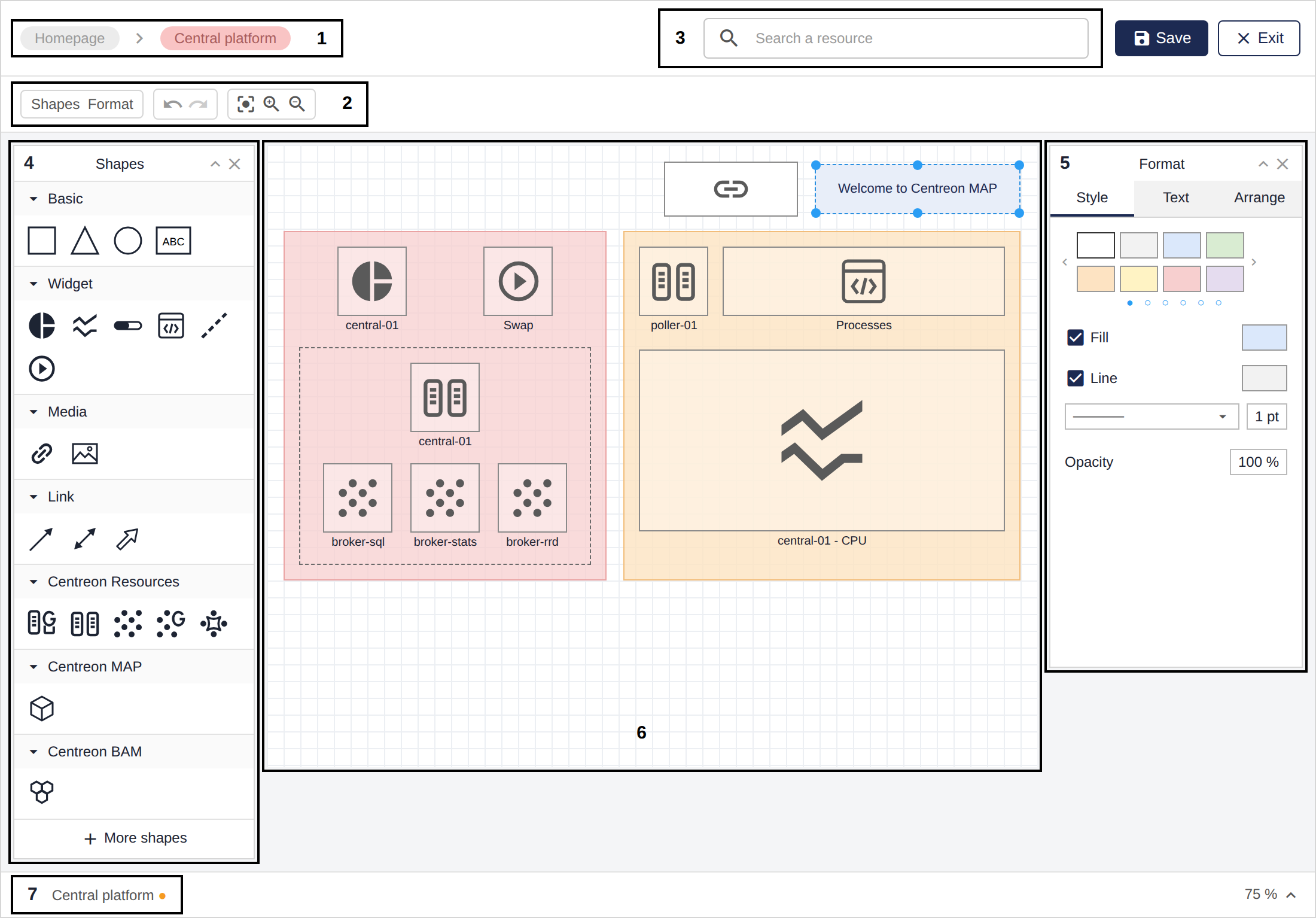
The editor is organized as follows:
- Breadcrumb: shows where you are in the map, when the map has several levels.
- Toolbar: lets you show or hide panels, undo or redo actions, and zoom in or out.
- Search a resource: lets you make a search for resources.
- Shapes panel: contains all the elements you can add to your map, from basic shapes to Centreon resources.
- Format panel: lets you change the format of the selected element.
- Drawing canvas: the area where you build your map.
- Tabs: let you navigate between the levels of your map.
Build the map
- Add your Centreon resources:
- To add one resource, drag a Host, Service, Host group, Service group, Metaservice or Business activity element from the Shapes panel onto the canvas, right-click it, select Edit data, choose the resource and click Submit.
- To add several resources at once, use the Search a resource bar above the canvas, select the resources you want, then click Add to map.
- Add context to your map:
- Widgets display data about your resources, such as a pie chart of statuses, a line chart of performance data, a gauge or the output of a service.
- Links connect elements. A Status link takes the color of a resource's status, and a Metric link displays a service's metrics.
- Media elements let you add images and URLs, and Basic shapes let you organize your map with shapes and text.
- If your map has several levels (for instance, one level per site or per application), add Containers. In viewing mode, each container becomes a map with its own status.
- Use the Format panel to customize the style, text and layout of your elements.
- Click Save, then Exit.
Your map is displayed in viewing mode, and each element shows the real-time status of its resource.
To learn more about the available elements and their settings, see Creating a standard map.
Create a geographic view
If your infrastructure is spread across a city, a country or the world, a geographic view displays the status of your resources across a geographical area.
Prerequisite: add geographic coordinates to your resources
A resource can only be displayed on a geographic view if it has geographic coordinates. For a host:
- Go to Configuration > Hosts > Hosts and click the host.
- In the Host Extended Infos tab, fill in the Geographic coordinates field in the
Latitude, Longitudeformat. - Click Save.
You can also add geographic coordinates to host groups, business activities and standard maps.
Create the view
- Go to Monitoring > Map.
- In the Geographic views section, click Add a Geographic view.
- Enter a Name for the view and, optionally, select an Image.
- In the Add resources section, select the maps, host groups, hosts and business activities you want to display.
- Click Add.
Each resource is displayed as a circle whose color shows its status. When resources are close to each other, they are grouped into a single circle showing the worst status and the number of resources in that status.
To learn more, see Creating a geographic view.
Display and share your maps
Access to maps is based on Centreon access groups, so each team only sees the maps that concern them.
- Share a map: on the Monitoring > Map page, click the share button of the map, set the privileges of each access group, then click Save. See Understanding map access (ACL).
- Send a link to a map: in viewing mode, click Copy MAP URL.
- Add a map to a dashboard: add the MAP - Display a view widget to a dashboard, then select the map to display.
You now know the main features of Centreon MAP. To go further, see the Centreon MAP documentation.