Monitoring non-public user journeys
A private Synthetic Monitoring Zone (STM Zone) allows you to monitor your user journeys on internal domains or networks specific to your organization using a probe deployed inside your infrastructure. You can also use a probe to obtain personalized recommendations to optimize your website.
Prerequisites
- A machine inside your infrastructure to host the probe. The machine must be able to access the application you will monitor.
- A user journey configured on the internal application to monitor.
Step 1: Create a new STM zone
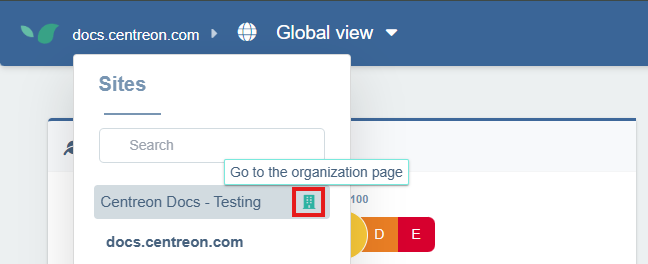
- From the Global View, open the site selector in the top-left corner and select your organization’s page.
-
On your organization’s configuration page, click the Synthetic Monitoring Zones tab.
-
Click + New Synthetic Monitoring Zone. Give the zone a meaningful name (e.g., Paris Office) then click + Create.
Your new zone now appears in the list.
Step 2: Obtain a probe token
While remaining inside the organization page, open the Tokens tab. Click Create a token and follow the steps to create a probe token.
Save your token, you will need it to create the probe on the next step.
Step 3: Associate a probe to the STM zone
- Click Associate a probe to the right of your zone. A window opens. Execute the docker command to authenticate into the registry.
Step 4: Create and launch the probe
- STM probe
- Recommendations probe
STM probes collect the usual performance metrics used by Experience Monitoring.
-
To create and launch the STM probe, execute the second command you obtained at step 3 with the probe token.
-
Refresh the page: once launched, the probe is automatically saved and appears to the right of the associated zone in the Synthetic Monitoring Zones list.
Recommendations probes run once a day to make personalized suggestions on how to optimize your website.
-
To create and launch the recommendations probe, click the Recommendations tab in the Start the probe section and execute the displayed command.
-
Refresh the page: once launched, the probe is automatically saved and appears to the right of the associated zone in the Synthetic Monitoring Zones list. Recommendation probes have a binoculars icon to distinguish them from STM probes.
Note that it takes up to 24 hours for the probe to gather enough data to start sending recommendations.
Step 5: Associate the zone with a user journey
-
Go to Configuration and select the User Journeys tab.
-
On the journey you want to run from your private zone, click on the three dots on the right, then click on Advanced.
-
In the Advanced configuration window, scroll down to the Synthetic Monitoring Zones section. Your private zone appears under Private Zones. Select it and click Save.
After a short while, the probe will have executed its first check and your internal journey monitoring will be operational. You can analyze it just like a regular user journey.