Secure your MAP platform
This chapter describes advanced procedures to secure your Centreon MAP platform.
If you want to use MAP in HTTPS, you must both secure your Centreon platform and MAP. Follow this procedure if you need to secure your Centreon platform.
Mistakes when editing configuration files can lead to malfunctions of the software. We recommend that you make a backup of the file before editing it and that you only change the settings advised by Centreon.
All TLS settings described in this chapter are configured through properties in /etc/centreon-map/map-config.properties. Two certificate formats are supported:
- PEM (recommended): use your
.crtcertificate and.keyprivate key files directly. This is the default format and requires no conversion. - JKS: use a Java keystore, if you already have one.
If you are upgrading from a version that used the
tls/tls_brokerSpring profiles in /etc/centreon-map/centreon-map.conf, you don't need to change anything manually: the postinstall script automatically migrates your existing configuration to the property-based format described below.
Configure HTTPS/TLS on the MAP server
This section describes how to secure the MAP web server itself (the interface reached by your browser and by Centreon Central).
HTTPS/TLS configuration with a recognized key
This section describes how to use a recognized key with the Centreon MAP server.
If you want to use a self-signed certificate instead, please refer to the following section.
You will require:
- A private key file, referred to as map-server.key.
- A certificate file, referred to as map-server.crt.
- PEM (recommended)
- JKS
-
Copy the key and certificate files to the MAP server, for example into /etc/centreon-map/.
-
Set the following parameters in /etc/centreon-map/map-config.properties:
centreon-map.tls.enabled=truecentreon-map.tls.pem.keystore.certificate=/etc/centreon-map/map-server.crtcentreon-map.tls.pem.keystore.private-key=/etc/centreon-map/map-server.keycentreon-map.tls.pem.keystore.private-key-pass=xxxOnly set
private-key-passif your private key is encrypted. Adapt the paths if you stored the files elsewhere.
-
Access the Centreon MAP server through SSH and create a PKCS12 file with the following command line:
openssl pkcs12 -inkey map-server.key -in map-server.crt -export -out keys.pkcs12 -
Import this file into a new keystore (a Java repository of security certificates):
keytool -importkeystore -srckeystore keys.pkcs12 -srcstoretype pkcs12 -destkeystore /etc/centreon-map/map.jks -
Set the following parameters in /etc/centreon-map/map-config.properties:
centreon-map.tls.enabled=truecentreon-map.tls.type=map-jks-tlscentreon-map.tls.jks.keystore=/etc/centreon-map/map.jkscentreon-map.tls.jks.keystore-pass=xxxReplace the keystore-pass value "xxx" with the password you used for the keystore, and adapt the path if it was changed.
HTTPS/TLS configuration with an auto-signed key
Enabling the TLS mode with an auto-signed key will force every user to add an exception for the certificate before using the web interface.
Enable it only if your Centreon also uses this protocol.
Users will have to open the URL:
The solution we recommend is to use a recognized key, as explained above.
- PEM (recommended)
- JKS
-
Generate a self-signed certificate and private key:
openssl req -x509 -newkey rsa:2048 -nodes -keyout /etc/centreon-map/map-server.key -out /etc/centreon-map/map-server.crt -days 365 -
Set the following parameters in /etc/centreon-map/map-config.properties:
centreon-map.tls.enabled=truecentreon-map.tls.pem.keystore.certificate=/etc/centreon-map/map-server.crtcentreon-map.tls.pem.keystore.private-key=/etc/centreon-map/map-server.key
-
Move to the Java installation folder:
cd $JAVA_HOME/bin -
Generate a keystore file with the following command:
keytool -genkey -alias map -keyalg RSA -keystore /etc/centreon-map/map.jksThe alias value "map" and the keystore file path /etc/centreon-map/map.jks may be changed, but unless there is a specific reason, we advise keeping the default values.
Provide the needed information when creating the keystore.
At the end of the screen form, when the "key password" is requested, use the same password as the one used for the keystore itself by pressing the ENTER key.
-
Set the following parameters in /etc/centreon-map/map-config.properties:
centreon-map.tls.enabled=truecentreon-map.tls.type=map-jks-tlscentreon-map.tls.jks.keystore=/etc/centreon-map/map.jkscentreon-map.tls.jks.keystore-pass=xxxReplace the keystore-pass value "xxx" with the password you used for the keystore.
Apply the configuration
Restart the Centreon MAP service to apply the change:
systemctl restart centreon-map-engine
Centreon MAP server is now configured to respond to requests from HTTPS. The default listening port automatically switches to 9443 (or a port previously configured) instead of 8081.
To use a different port, set the following parameter in /etc/centreon-map/map-config.properties:
centreon-map.port=9443
To change the default port, refer to the dedicated procedure.
Don't forget to modify the URL on Centreon side in the MAP server address field in the Administration > Extensions > Map > Options menu.
Configure TLS on the Broker connection
An additional Broker output for Centreon Central (centreon-broker-master) has been created during the installation.
You can check it in your Centreon web interface, from the Configuration > Pollers > Broker Configuration, by editing the centreon-broker-master configuration.
The output configuration should look like this:
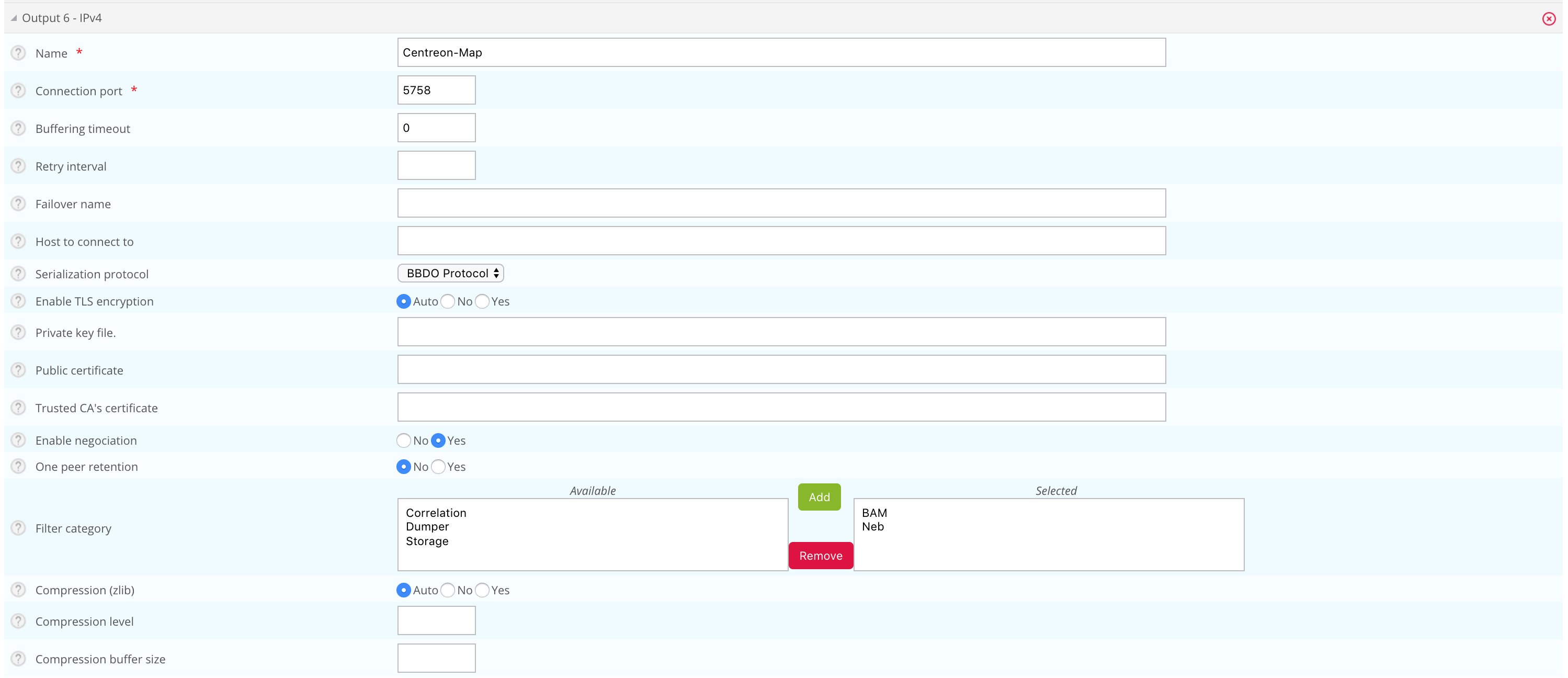
Broker configuration
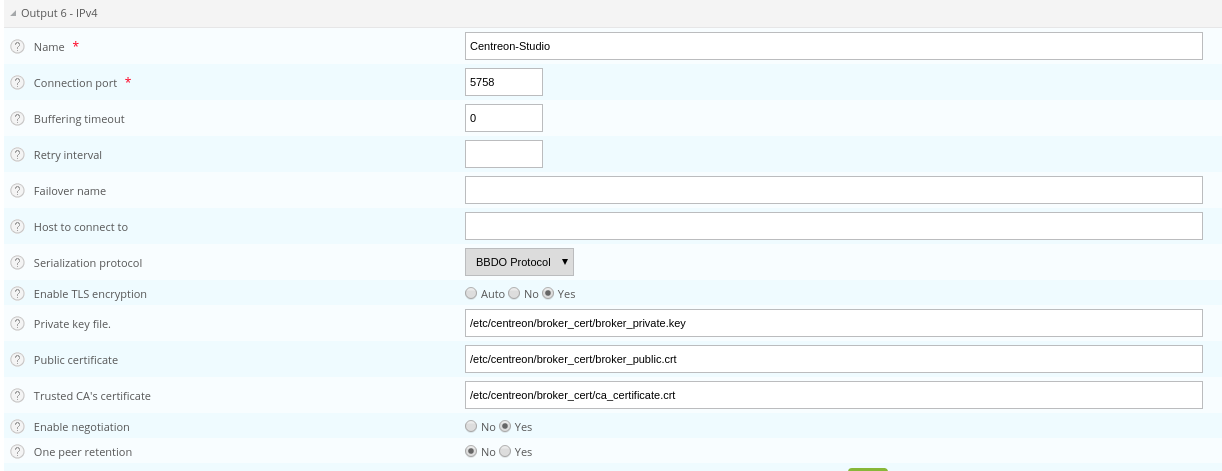
You can enable TLS output and set up Broker's private key and public certificate as described below:
-
Create a self-signed certificate with the following commands:
openssl req -new -newkey rsa:2048 -nodes -keyout broker_private.key -out broker.csropenssl x509 -req -in broker.csr -CA ca.crt -CAkey ca.key -CAcreateserial -out broker_public.crt -days 365 -sha256 -
Copy the private key and the certificate into /etc/centreon/broker_cert/ directory:
mv broker_private.key /etc/centreon/broker_cert/mv broker_public.crt /etc/centreon/broker_cert/
"Trusted CA's certificate" field is optional. If you activate Broker's client authentication by setting this "ca_certificate.crt", then you must also configure the MAP server's own TLS.
You MUST push the new broker configuration and restart the broker after configuration.
MAP engine configuration
Set the following parameters in /etc/centreon-map/map-config.properties to enable the TLS socket connection to Broker:
- PEM (recommended)
- JKS
broker.tls.enabled=true
broker.tls.pem.keystore.certificate=/etc/centreon-map/map-broker.crt
Point directly to the Broker public certificate (or its CA certificate) in PEM format — no truststore creation needed.
If the Broker public certificate is self-signed, you must create a truststore containing the certificate (or its CA certificate) with the following command line:
keytool -import -alias centreon-broker -file broker_public.crt -keystore /etc/centreon-map/map-broker.jks
- "broker_public.crt" is Broker's public certificate or its CA certificate in PEM format,
- "map-broker.jks" is the generated truststore in JKS format,
- a store password is required during generation.
Add the truststore parameters in /etc/centreon-map/map-config.properties:
broker.tls.enabled=true
broker.tls.type=broker-jks-tls
broker.tls.jks.truststore=/etc/centreon-map/map-broker.jks
broker.tls.jks.truststore-pass=xxxx
broker.tls.jks.truststore-passis optional — only set it if the truststore was created with a password.
If the Broker certificate is signed by a recognized CA, the JVM default trust store (cacerts, /etc/pki/java/cacerts) is used automatically — nothing to configure.
Restart the Centreon MAP service to apply the change:
systemctl restart centreon-map-engine
Once you configure a trusted certificate, Centreon MAP will use it to validate
Broker's certificate. This means that if you use a self-signed certificate for
Broker, you must add it as shown above. If you don't, the
Monitoring > Map page will be blank, and the logs (/var/log/centreon-map/centreon-map.log)
will show the following error:
unable to find valid certification path to requested target.
Configure TLS for the connection to Centreon Central
You must secure your Centreon platform with HTTPS.
Set the centreon.url parameter inside /etc/centreon-map/map-config.properties to use HTTPS instead of HTTP:
centreon.url=https://<server-address>
If Centreon Central uses a self-signed certificate or a certificate signed by a custom/internal CA, you must give Centreon MAP a way to trust it:
- PEM (recommended)
- JKS
centreon.tls.pem.keystore.certificate=/etc/centreon-map/central-ca.crt
Point directly to Central's public certificate or its CA certificate, in PEM format.
-
Copy the central server's .crt certificate to the MAP server.
-
Create a truststore containing the certificate (or its CA certificate):
keytool -import -alias centreon-central -file central_public.crt -keystore /etc/centreon-map/central-truststore.jks -
Set the following parameters:
centreon.tls.jks.truststore=/etc/centreon-map/central-truststore.jkscentreon.tls.jks.truststore-pass=xxxxcentreon.tls.jks.truststore-passis optional — only set it if the truststore was created with a password.
Centreon MAP defaults to the PEM format for this setting; if the PEM certificate file doesn't exist, it falls back to JKS. There is no
centreon.tls.typeproperty to set for this connection.
If the certificate is signed by a recognized CA, nothing needs to be configured: the JVM default trust store (cacerts, /etc/pki/java/cacerts) is used automatically.