Upgrade from Centreon 24.10
This chapter describes how to upgrade your Centreon platform from version 24.10 to version 26.10.
Upgrading is only possible if your current OS is RHEL/Oracle/AlmaLinux 9. Other OSs are no longer supported: use a migration procedure to switch to a supported OS. If your Centreon platform has HA, please contact your Centreon sales representative to discuss any migration scenario.
- When you upgrade your central server, make sure you also upgrade all your remote servers and your pollers.
- All servers in your architecture must have the same version of Centreon.
- In addition, all servers must use the same version of the BBDO protocol.
Components other than Centreon that need upgrading
| Component | Version in 24.10 | Version in 26.10 |
|---|---|---|
| PHP | 8.2 | 8.4 |
| Database |
|
|
Prerequisites
Perform a backup
Be sure that you have fully backed up your environment for the following servers:
- Central server
- Database server
Check the repositories
Before upgrading your Centreon platform, make sure the following package repositories are enabled:
- EL
- EPEL
- BaseOS
- AppStream
- centreon
- centreon-business, if you are using Centreon Business Edition.
Create an authentication token
If you want to finalize the upgrade via the API, you will need an authentication token. Create one before starting the upgrade process.
- Go to Administration > Authentication tokens, then click Add.
- Copy the token and store it carefully, as it will not be displayed twice. You will need it at step 7 of the upgrade procedure.
Upgrade the Centreon Central server
When you run a command, check its output. If you get an error message, stop the procedure and fix the issue.
If you installed MariaDB from their official repositories, you may run into a conflict issue. Read our dedicated procedure for a workaround.
Step 1: Install the new repositories
- Alma / RHEL / Oracle Linux 9
-
Update your Centreon 24.10 to the latest minor version.
-
Remove the repository files:
rm -f /etc/yum.repos.d/centreon-24.10.reporm -f /etc/yum.repos.d/centreon.repo -
Install the new repository:
dnf install -y dnf-plugins-core
dnf config-manager --add-repo https://packages.centreon.com/rpm-standard/26.10/el9/centreon-26.10.repo
- If you have an offline license, also remove the old Monitoring Connectors repository, then install the new one. You can find the address of these repositories on the support portal.
Step 2: Start upgrading the Centreon solution
-
Make sure all users are logged out from the Centreon web interface before starting the upgrade procedure. Consider your platform as in maintenance until the end of step 7.
-
If you have installed Business extensions, delete the configuration of the 24.10 repository:
- Alma / RHEL / Oracle Linux 9
rm /etc/yum.repos.d/centreon-business-24.10.repo
-
Install the 26.10 Business repository: visit the support portal to get its address.
-
If your OS is Debian and you have a customized Apache configuration, perform a backup of your configuration file (/etc/apache2/sites-available/centreon.conf).
-
Stop the Centreon Broker process:
systemctl stop cbd
- Delete existing retention files:
rm /var/lib/centreon-broker/* -f
Step 3: Upgrade PHP
Centreon 26.10 uses PHP in version 8.4.
- Alma / RHEL / Oracle Linux 9
You need to install the Remi repo and the switch the PHP stream from version 8.2 to 8.4 by executing the following commands:
dnf install -y https://rpms.remirepo.net/enterprise/remi-release-9.rpm
rpm -e --nodeps php-sourceguardian-loader
dnf module reset php -y
dnf module enable php:remi-8.4 -y
Accept new GPG keys from the repositories as needed.
Step 4: Finish upgrading the Centreon solution
Then, finish upgrading the Centreon solution.
- Clean the cache:
- Alma / RHEL / Oracle Linux 9
dnf clean all --enablerepo=*
- Then upgrade all the components with the following command:
- Alma / RHEL / Oracle Linux 9
rpm -e --nodeps php-pecl-gnupg
dnf update -y "centreon*" --exclude=php-pecl-gnupg
Accept new GPG keys from the repositories as needed.
RPM packages can mark some configuration files so they are never overwritten on upgrade. If you modified one of those files and the new package ships a different version of it, dnf keeps your file and writes the package's version next to it with a .rpmnew extension. For example, you keep centengine.cfg and also get centengine.cfg.rpmnew. Nothing is merged automatically. Compare the two files and decide what to copy over.
The following files may be affected. You won't necessarily get an .rpmnew file for each of them: one is only created for files that you modified and for which the package ships a new version.
/etc/logrotate.d/centreon
/etc/httpd/conf.d/10-centreon.conf
/etc/php.d/50-centreon.ini
/etc/php/${PHP_MIN_VERSION}/mods-available/centreon.ini
/etc/php-fpm.d/centreon.conf
/etc/php/${PHP_MIN_VERSION}/fpm/pool.d/centreon.conf
/etc/systemd/system/php-fpm.service.d/centreon.conf
/lib/systemd/system/php${PHP_MIN_VERSION}-fpm.service.d/centreon.conf
/usr/share/centreon/.env
/usr/share/centreon/.env.local.php
Step 5: Update your customized Apache configuration
This section only applies if you customized your Apache configuration.
- Alma / RHEL / Oracle Linux 9
When you upgrade your platform, the Apache configuration file is not upgraded automatically. The new configuration file brought by the rpm does not replace the old file. You must copy the changes manually to your customized configuration file.
Run a diff between the old and the new Apache configuration files:
diff -u /etc/httpd/conf.d/10-centreon.conf /etc/httpd/conf.d/10-centreon.conf.rpmnew
- 10-centreon.conf (post upgrade): this file contains the custom configuration. It does not contain anything new brought by the upgrade.
- 10-centreon.conf.rpmnew (post upgrade): this file is provided by the rpm; it does not contain any custom configuration.
For each difference between the files, assess whether you should copy it from 10-centreon.conf.rpmnew to 10-centreon.conf.
Check that Apache is configured properly by running the following command:
apachectl configtest
The expected result is the following:
Syntax OK
Restart the Apache and PHP processes to take the new configuration into account:
systemctl restart php-fpm httpd
Then check its status:
systemctl status httpd
If everything is ok, you should have:
● httpd.service - The Apache HTTP Server
   Loaded: loaded (/usr/lib/systemd/system/httpd.service; enabled; vendor preset: disabled)
  Drop-In: /usr/lib/systemd/system/httpd.service.d
           └─php-fpm.conf
   Active: active (running) since Tue 2024-10-27 12:49:42 GMT; 2h 35min ago
     Docs: man:httpd.service(8)
 Main PID: 1483 (httpd)
   Status: "Total requests: 446; Idle/Busy workers 100/0;Requests/sec: 0.0479; Bytes served/sec: 443 B/sec"
    Tasks: 278 (limit: 5032)
   Memory: 39.6M
   CGroup: /system.slice/httpd.service
           ├─1483 /usr/sbin/httpd -DFOREGROUND
           ├─1484 /usr/sbin/httpd -DFOREGROUND
           ├─1485 /usr/sbin/httpd -DFOREGROUND
           ├─1486 /usr/sbin/httpd -DFOREGROUND
           ├─1487 /usr/sbin/httpd -DFOREGROUND
           └─1887 /usr/sbin/httpd -DFOREGROUND
Customized Apache configuration: enable text compression
In order to improve page loading speed, you can activate text compression on the Apache server. It requires the brotli package to work. This is optional, but it provides a better user experience.
Add the following code to your Apache configuration file, in both the <VirtualHost *:80> and <VirtualHost *:443> elements:
<IfModule mod_brotli.c>
    AddOutputFilterByType BROTLI_COMPRESS text/html text/plain text/xml text/css text/javascript application/javascript application/json
</IfModule>
AddOutputFilterByType DEFLATE text/html text/plain text/xml text/css text/javascript application/javascript application/json
Step 6: Upgrade the database
- If you were using MariaDB 10.11.x, upgrade it to version 11.8.
- If you were using MySQL 8.0, upgrade it to version 8.4.
- If you were already using MySQL 8.4, you don't need to do anything.
Step 7: Finalize the upgrade
-
Before starting the web upgrade process, upgrade the Centreon BAM module and reload the Apache server with the following command:
- Alma / RHEL / Oracle Linux 9
systemctl reload php-fpm httpd -
Finalize the upgrade process:
- Using the wizard
- Using a dedicated API endpoint
-
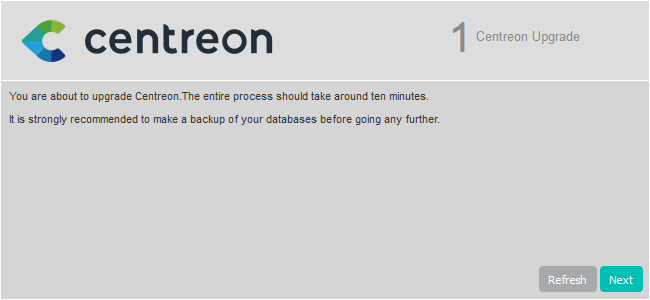
Log on to the Centreon web interface to continue the update process. Click Next:
-
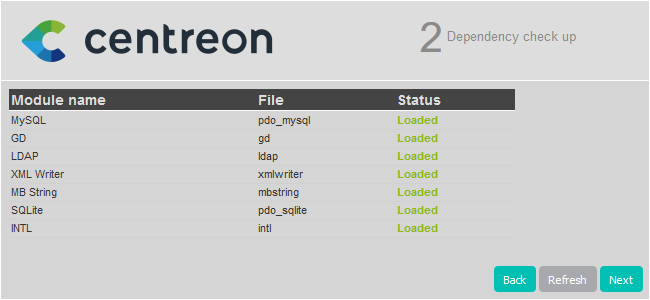
Click Next:
-
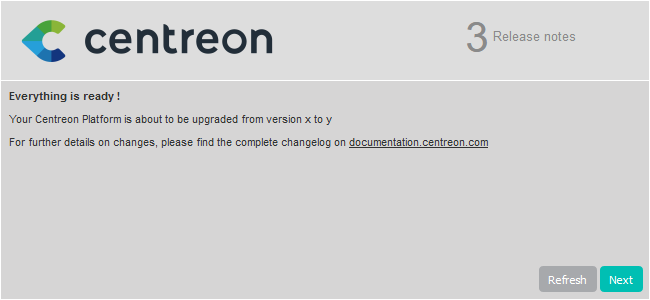
The release notes describe the main changes. Click Next:
-
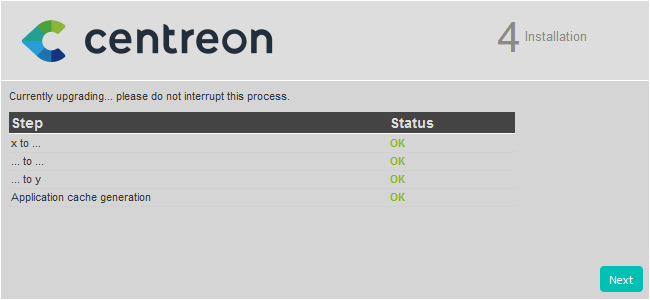
This process performs the various upgrades. Click Next:
-
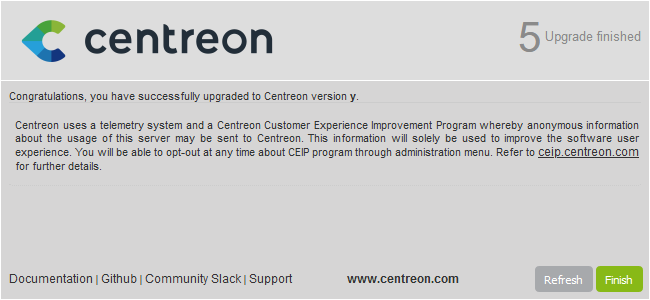
Your Centreon server is now up to date. Click Finish to access the login page:
-
Deploy the central's configuration from the Centreon web UI.
- In your terminal, enter this request, using the correct IP address for your platform, and replacing mytoken with your actual token (as described in the prerequisites):
curl --location --request POST 'http://10.25.XX.XX:80/centreon/api/latest/platform/updates' \--header 'X-AUTH-TOKEN: mytoken' \--header 'Content-Type: application/json' \--data '{"components": [{"name": "centreon-web"}]}'- This request does not return any result. To check if the update has been successfully applied, read the version number displayed on the Centreon web interface login page.
-
Finally, restart Broker, Engine and Gorgone on the central server by running this command:
systemctl restart cbd centengine gorgoned centreontrapd -
Update the permissions on the centreon-broker configuration files.
- Alma / RHEL / Oracle Linux 9
usermod -a -G centreon-broker apacheusermod -a -G apache centreon-broker -
Refer to the Centreon MBI and Centreon MAP dedicated procedures to update these modules.
Step 8: Post-upgrade actions
-
Upgrade extensions. From Administration > Extensions > Manager, upgrade all extensions, starting with the following:
- License Manager,
- Monitoring Connector Manager,
- Auto Discovery.
Then you can upgrade all other commercial extensions.
-
If you were using custom commands for a poller (on the Configuration > Pollers > Pollers page, in the Monitoring Engine Information section), be aware that a new validation regex is now applied (
[a-zA-Z0-9\-\_]+): your custom commands may need to be adapted. On the central server:- To identify commands that must be adapted, run:
sudo -u apache php /usr/share/centreon/bin/console w:m:c --dry-run
- To adapt the commands automatically, run:
(You can also adapt them manually.)sudo -u apache php /usr/share/centreon/bin/console w:m:c
- To identify commands that must be adapted, run:
-
Restart the processes:
systemctl restart cbd centengine centreontrapd gorgoned
Upgrade the Remote Servers
This procedure is the same as for upgrading a Centreon Central server with the addition of needing to retrieve the decryption key at the end.
Retrieving the decryption key
Run the following script with the central server IP address to enable the remote server to receive and process encrypted data:
/usr/share/centreon/bin/writeEngineSecrets.sh <BASE_URL> <API_ACCOUNT> <PASSWORD>
Example:
/usr/share/centreon/bin/writeEngineSecrets.sh https://10.10.10.10/centreon admin password
You must use admin as the <API_ACCOUNT>.
Restart centengine:
systemctl restart centengine
At the end of the update, the configuration should be deployed from the Central server.
Upgrade the Pollers
Update the Centreon repository
Run the following command:
- Alma / RHEL / Oracle Linux 9
dnf install -y dnf-plugins-core && \
rm -f /etc/yum.repos.d/centreon* && \
dnf config-manager --add-repo https://packages.centreon.com/rpm-standard/26.10/el9/centreon-26.10.repo
Upgrade the Centreon solution
Clean the cache:
- Alma / RHEL / Oracle Linux 9
dnf clean all --enablerepo=*
Then upgrade all the components with the following command:
- Alma / RHEL / Oracle Linux 9
dnf update centreon\* -y
If you installed MariaDB from their official repositories, you may run into a conflict issue. Read our dedicated procedure for a workaround.
Accept new GPG keys from the repositories as needed.
Restart centreon:
systemctl restart centreon
Retrieving the decryption key
Run the following script with the correct IP address to enable the poller to receive and process encrypted data.
The IP address to use depends on the following conditions:
- When updating pollers linked directly to the central server, use the central server's IP.
- When updating pollers linked to a remote server, use the remote server's IP. However, in this instance, you must first confirm the remote server has the correct key by checking that the value of
app_secretin the/etc/centreon-engine/engine-context.jsonfile is the same as the central server's. If this is not the case, relaunch the script with the right IP to correct the .json file.
/usr/share/centreon/bin/writeEngineSecrets.sh <BASE_URL> <API_ACCOUNT> <PASSWORD>
Example:
/usr/share/centreon/bin/writeEngineSecrets.sh https://10.10.10.10/centreon admin password
You must use admin as the <API_ACCOUNT>.
Restart centengine:
systemctl restart centengine