Installing MBI
This page is intended for administrators who will install and configure Centreon MBI.
This page presents the software architecture of the Centreon MBI extension, then explains how to install it. To do so, five main steps are required:
- Check the system requirements.
- Install the Centreon MBI interface in the Centreon application.
- Install the reporting server (Centreon MBI Reporting Server).
- Configure the ETL in the Centreon interface.
- Build the MBI database.
Once installation is complete, you can monitor your MBI server with Centreon.
Architecture
A dedicated reporting server
The architecture and these requirements apply to:
- test
- pre-production
- production environments.
The diagram below highlights the main components of Centreon MBI:
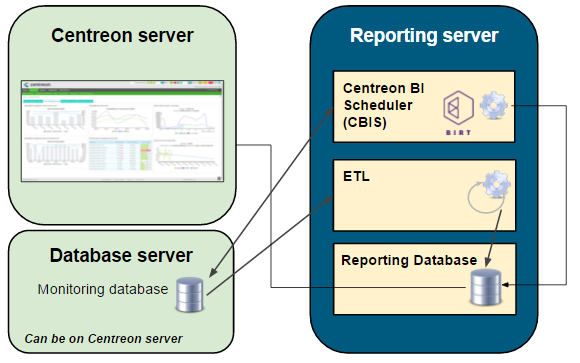
The monitoring database is not necessarily on the same server as the Centreon server.
- ETL: Process that extracts, transforms and loads data into the reporting database.
- CBIS: The scheduler that manages the execution and publication of reports.
- Reporting Database: The MariaDB/MySQL database that contains the reporting data and some raw data extracted from the monitoring database.
Network Flow Tables
The table below shows the different types of flows, by default, between the dedicated BI server, the Centreon server and the databases:
| Application | Source | Destination | Port | Protocol |
|---|---|---|---|---|
| ETL/CBIS | Reporting server | Centreon database server | 3306 | TCP |
| ETL | Localhost | Localhost | 8085 | TCP |
| SSH | Reporting server | Centreon Server | 22 | TCP |
| CBIS | Reporting server | Centreon Server | 80 | HTTP* |
| CBIS | Centreon | Reporting server | 1234 | TCP |
| Widgets | Centreon central server | Reporting server | 3306 | TCP |
Only required for Host-Graph-v2 and Hostgroup-Graph-v2 reports that use the Centreon API to generate graphs.
Information about the packages
The Centreon MBI installation is based on two RPM packages:
- Centreon-bi-server: Installs the MBI interface integrated with the Centreon interface. The package is installed on the Centreon central server.
- Centreon-bi-reporting-server: Contains all the components needed to run the reporting server (report scheduler, ETL, standard reports). It must be installed on a server dedicated to reporting processes.
The installation of the database must be done at the same time. We strongly recommend installing the MariaDB/MySQL database on the reporting server, for performance and isolation reasons.
Step 1: Check the system requirements
Central Centreon server
Software requirements
See the software requirements.
You should install the MariaDB/MySQL database at the same time. We highly recommend installing the database on the same server, due to performance and isolation considerations.
- Alma / RHEL / Oracle Linux 9
- Alma / RHEL / Oracle Linux 10
- Debian 13
-
Centreon Web 26.10
-
Check that
date.timezoneis correctly configured in the/etc/php.d/50-centreon.inior/etc/php.d/20-timezone.inifile (same as the one returned by thetimedatectl statuscommand). -
Avoid using the following variables in the configuration file
/etc/my.cnf. They interrupt the execution of long queries and can stop ETL or report generation jobs:- wait_timeout
- interactive_timeout
This only applies to the monitoring database. The optimized configuration file of the reporting database sets these variables to 28800 seconds on purpose.
Users and groups
| User | Group |
|---|---|
| centreonBI (new) | apache,centreon,centreonBI |
| apache (existing) | centreonBI |
-
Centreon Web 26.10
-
Check that
date.timezoneis correctly configured in the/etc/php.d/50-centreon.inior/etc/php.d/20-timezone.inifile (same as the one returned by thetimedatectl statuscommand). -
Avoid using the following variables in the configuration file
/etc/my.cnf. They interrupt the execution of long queries and can stop ETL or report generation jobs:- wait_timeout
- interactive_timeout
This only applies to the monitoring database. The optimized configuration file of the reporting database sets these variables to 28800 seconds on purpose.
Users and groups
| User | Group |
|---|---|
| centreonBI (new) | apache,centreon,centreonBI |
| apache (existing) | centreonBI |
-
Centreon Web 26.10
-
Check that
date.timezoneis correctly configured in the/etc/php/8.4/mods-available/centreon.inior/etc/php/8.4/mods-available/timezone.inifile (same as the one returned by thetimedatectl statuscommand). -
Avoid using the following variables in the configuration file
/etc/mysql/mariadb.cnf. They interrupt the execution of long queries and can stop ETL or report generation jobs:- wait_timeout
- interactive_timeout
This only applies to the monitoring database. The optimized configuration file of the reporting database sets these variables to 28800 seconds on purpose.
-
When creating the CentreonBI user, you must execute the following command:
adduser centreonBI --allow-bad-names
Users and groups
| User | Group |
|---|---|
| centreonBI (new) | www-data,centreon,centreonBI |
| www-data (existing) | centreonBI |
Description of users, umask and home directory
| User | umask | home |
|---|---|---|
| centreonBI | 0002 | /home/centreonBI |
Dedicated reporting server
Hardware layer
- Up to 500 hosts
- Up to 1,000 hosts
- Up to 2,500 hosts
- Up to 5,000 hosts
- Up to 10,000 hosts
- Up to 20,000 hosts
- Over 20,000 hosts
| Element | Value |
|---|---|
| CPU | 4 vCPU |
| RAM | 16 GB |
This is how your MBI server should be partitioned:
| Volume group (LVM) | File system | Description | Size |
|---|---|---|---|
| /boot | boot images | 1 GB | |
| vg_root | / | system root | 20 GB |
| vg_root | swap | swap | 4 GB |
| vg_root | /var/log | contains all log files | 10 GB |
| vg_data | /var/lib/mysql | database | 233 GB |
| vg_data | /var/backup | backup directory | 10 GB |
| vg_data | Free space (unallocated) | 5 GB |
| Element | Value |
|---|---|
| CPU | 4 vCPU |
| RAM | 16 GB |
This is how your MBI server should be partitioned:
| Volume group (LVM) | File system | Description | Size |
|---|---|---|---|
| /boot | boot images | 1 GB | |
| vg_root | / | system root | 20 GB |
| vg_root | swap | swap | 4 GB |
| vg_root | /var/log | contains all log files | 10 GB |
| vg_data | /var/lib/mysql | database | 465 GB |
| vg_data | /var/backup | backup directory | 10 GB |
| vg_data | Free space (unallocated) | 5 GB |
| Element | Value |
|---|---|
| CPU | 4 vCPU |
| RAM | 24 GB |
This is how your MBI server should be partitioned:
| Volume group (LVM) | File system | Description | Size |
|---|---|---|---|
| /boot | boot images | 1 GB | |
| vg_root | / | system root | 20 GB |
| vg_root | swap | swap | 4 GB |
| vg_root | /var/log | contains all log files | 10 GB |
| vg_data | /var/lib/mysql | database | 1163 GB |
| vg_data | /var/backup | backup directory | 10 GB |
| vg_data | Free space (unallocated) | 5 GB |
| Element | Value |
|---|---|
| CPU | 8 vCPU |
| RAM | 24 GB |
This is how your MBI server should be partitioned:
| Volume group (LVM) | File system | Description | Size |
|---|---|---|---|
| /boot | boot images | 1 GB | |
| vg_root | / | system root | 20 GB |
| vg_root | swap | swap | 4 GB |
| vg_root | /var/log | contains all log files | 10 GB |
| vg_data | /var/lib/mysql | database | 2326 GB |
| vg_data | /var/backup | backup directory | 10 GB |
| vg_data | Free space (unallocated) | 5 GB |
| Element | Value |
|---|---|
| CPU | 12 vCPU |
| RAM | 32 GB |
This is how your MBI server should be partitioned:
| Volume group (LVM) | File system | Description | Size |
|---|---|---|---|
| /boot | boot images | 1 GB | |
| vg_root | / | system root | 20 GB |
| vg_root | swap | swap | 4 GB |
| vg_root | /var/log | contains all log files | 10 GB |
| vg_data | /var/lib/mysql | database | 4651 GB |
| vg_data | /var/backup | backup directory | 10 GB |
| vg_data | Free space (unallocated) | 5 GB |
| Element | Value |
|---|---|
| CPU | 16 vCPU |
| RAM | 64 GB |
This is how your MBI server should be partitioned:
| Volume group (LVM) | File system | Description | Size |
|---|---|---|---|
| /boot | boot images | 2 GB | |
| vg_root | / | system root | 20 GB |
| vg_root | swap | swap | 8 GB |
| vg_root | /var/log | contains all log files | 10 GB |
| vg_data | /var/lib/mysql | database | 8462 GB |
| vg_data | /var/backup | backup directory | 10 GB |
| vg_data | Free space (unallocated) | 5 GB |
For very large amounts of data, contact your sales representative.
To check the free space, use the following command by replacing vg_data with the name of the group volume:
vgdisplay vg_data | grep -i free*
Firmware and software layer
- OS: see compatibility info here
- SGBD: see compatibility info here
- Firewalld: Disabled (look here)
- SELinux: Disabled (look here)
Make sure that the reporting server and the central server have the same time zone; otherwise report publications will fail (the link to download them will be missing). The /etc/localtime file must also exist on the reporting server; otherwise the install.sh script will fail to create the database schema.
-
Set the time zone of the reporting server to the same time zone as the central server (for example,
Europe/Paris):timedatectl set-timezone Europe/ParisIf the central server uses UTC, use
Etc/UTCrather thanUTC. If the reporting server already reports UTC,timedatectl set-timezone UTCdoes nothing and does not create/etc/localtime. -
Check that
/etc/localtimeexists and points to the right time zone:ls -l /etc/localtimeThe output should look like this:
/etc/localtime -> ../usr/share/zoneinfo/Europe/Paris.
Be sure to optimize MariaDB/MySQL on your reporting server. You WILL need at least 12 GB of RAM in order to use the optimized configuration file. Without this, the database doesn't start. Download the file that matches your database:
- MariaDB: centreon.cnf
- MySQL: centreon-mysql.cnf
You will save this file as 85-centreon-bi.cnf when you optimize the database. Keep this name: the 85- prefix makes sure the file is read after the 80-centreon.cnf file installed by Centreon packages, so that its values are not overridden.
If you want to use a different directory than
/var/lib/mysql/, edit the datadir and tmpdir variables in the85-centreon-bi.cnffile.
Make sure a tmp folder is created inside the same partition as /var/lib/mysql.
Do not set these MariaDB optimizations on your monitoring server.
Users and groups:
| User | Group |
|---|---|
| centreonBI | centreonBI |
Description of users, umask and user directory:
| User | umask | home |
|---|---|---|
| centreonBI | 0002 | /home/centreonBI |
Step 2: Install the extension on Centreon
The actions listed in this chapter must be performed on the Centreon Central Server.
-
Install the Business repository. You can find it on the support portal.
-
Then run the following commands:
- Alma / RHEL / Oracle Linux 9
- Alma / RHEL / Oracle Linux 10
- Debian 13
dnf install centreon-bi-server
dnf install centreon-bi-server
Install gpg:
apt install gpg
Import the repository key:
wget -O- https://apt-key.centreon.com | gpg --dearmor | tee /etc/apt/trusted.gpg.d/centreon.gpg > /dev/null 2>&1
Then install Centreon MBI:
apt install centreon-bi-server
Grant rights to the centreon user
In the central database, grant trigger rights to the centreon user:
-
Find the host(s) on which the centreon user exists:
SELECT user, host FROM mysql.user WHERE user = 'centreon'; -
Grant the rights to the centreon user:
GRANT TRIGGER ON centreon.* TO 'centreon'@'<host>';GRANT TRIGGER ON centreon_storage.* TO 'centreon'@'<host>';Replace <host> with the value returned by the previous query (for example,
localhostif the database is local to the central server, or%or an IP address if it is remote). If the query returns several hosts, run these commands for each of them.
Allow function creation (MySQL only)
If the central database uses MySQL, perform the following actions on the server that hosts it before you enable the extension. Otherwise, the installation fails with ERROR 1419: the extension appears as installed, but its menu and options are missing.
- Perform the following action:
- Alma / RHEL / Oracle Linux 9
- Alma / RHEL / Oracle Linux 10
- Debian 13
In the /etc/my.cnf.d/mysql-server.cnf file, add:
log_bin_trust_function_creators=1
In the /etc/my.cnf.d/mysql-server.cnf file, add:
log_bin_trust_function_creators=1
Create the /etc/mysql/conf.d/90-centreon-bi.cnf file and add:
[mysqld]
log_bin_trust_function_creators=1
-
Restart MySQL.
-
Check the database to confirm this variable is applied:
show global variables like 'log_bin_trust_function_creators';
+---------------------------------+-------+
| Variable_name                   | Value |
+---------------------------------+-------+
| log_bin_trust_function_creators | ON   |
If the variable is not turned on, set it manually:
mysql> SET GLOBAL log_bin_trust_function_creators = 1;
Enable the extension
The Administration > Extension > Manager menu allows you to install the extensions detected by Centreon. Click the Centreon MBI tile to install.
Then, download the license sent by the Centreon team to start configuring the general options.
Configure the extension
Enter the following values in the Centreon MBI general options menu, Reports > Monitoring Business Intelligence > General Options:
| Tabs | Option | Value |
|---|---|---|
| Scheduler options | CBIS Host | IP address of the reporting server |
| ETL options | Reporting engine uses a dedicated MySQL server | Yes |
| Reporting widgets* | Reporting MariaDB database | IP address of the reporting base (default = IP address of the reporting server) |
| Reporting widgets* | Password | Password of the centreonbi database user on the reporting server |
* The connection test will not work at this point in the installation.
The Password field of the Reporting widgets tab is prefilled with centreonbi. This is not the password that the installation scripts (centreonMysqlRights.pl and install.sh) set for the centreonbi user. If you keep the default value, the widgets cannot connect to the reporting database, and the connection test fails with the following error:
Access denied for user 'centreonbi'@'<IP_CENTRAL>'.
The password can be updated in Reporting > Monitoring Business Intelligence > General Options > Reporting widgets.
Access to the Central database
- Monitoring database on the central server
- Monitoring database on a remote server
- MariaDB
- MySQL
The MariaDB monitoring database is hosted on the central monitoring server.
Run the command below to allow the reporting server to connect to the databases on the monitoring server. Use the following option:
perl /usr/share/centreon/www/modules/centreon-bi-server/tools/centreonMysqlRights.pl --root-password=@MYSQLROOTPASSWORD@
This script will return the password for the CentreonBI user. The password can be updated in Reports > Monitoring Business Intelligence > General options > Reporting Widgets.
@MYSQLROOTPASSWORD@: The root password of the MariaDB monitoring database. If there is no password for the "root" user, do not specify the root-password option.
The MySQL monitoring database is hosted on the central monitoring server.
Run the command below to allow the reporting server to connect to the databases on the monitoring server.
Use the following option:
perl /usr/share/centreon/www/modules/centreon-bi-server/tools/centreonMysqlRights.pl --root-password=@MYSQLROOTPASSWORD@
This script will return the password for the CentreonBI user. The password can be updated in Reports > Monitoring Business Intelligence > General options > Reporting Widgets.
@MYSQLROOTPASSWORD@: The root password of the MariaDB monitoring database. If there is no password for the "root" user, do not specify the root-password option.
- MariaDB
- MySQL
The MariaDB monitoring database is hosted on a dedicated server.
Connect via SSH to the database server, and run the following commands:
CREATE USER 'centreonbi'@'$BI_ENGINE_IP$' IDENTIFIED BY 'centreonbi';
GRANT ALL PRIVILEGES ON centreon.* TO 'centreonbi'@'$BI_ENGINE_IP$';
GRANT ALL PRIVILEGES ON centreon_storage.* TO 'centreonbi'@'$BI_ENGINE_IP$';
$BI_ENGINE_IP$: IP address of the reporting server.
The MySQL monitoring database is hosted on a dedicated server.
Connect via SSH to the database server, and run the following commands:
CREATE USER 'centreonbi'@'$BI_ENGINE_IP$' IDENTIFIED BY 'centreonbi';
GRANT ALL PRIVILEGES ON centreon.* TO 'centreonbi'@'$BI_ENGINE_IP$';
GRANT ALL PRIVILEGES ON centreon_storage.* TO 'centreonbi'@'$BI_ENGINE_IP$';
$BI_ENGINE_IP$: IP address of the reporting server.
- MariaDB
- MySQL
If you use MariaDB replication for your monitoring databases, some views are created during the installation of Centreon MBI. You must exclude them from replication by adding the following line to the my.cnf file of the slave server or mariadb.cnf on Debian 13.
replicate-wild-ignore-table=centreon.mod_bi_%v01,centreon.mod_bi_%V01
Then, create the views manually on the slave server:
- Download the following file to a temporary folder (in our example, /tmp), for instance using wget.
- Run the following command (change the name of your temporary folder if necessary):
mysql centreon < /tmp/view_creation.sql
Debian 13 specific configuration
MariaDB must listen on all interfaces instead of listening on localhost/127.0.0.1 (default value). Edit the following file:
/etc/mysql/mariadb.conf.d/50-server.cnf
Set bind-address to 0.0.0.0 and restart mariadb.
systemctl restart mariadb
If you use MySQL replication for your monitoring databases, some views
are created during the installation of Centreon MBI.
You must exclude them from replication by adding the following line to the my.cnf
file of the slave server. On Debian 13, add it to the [mysqld] section of a file inside /etc/mysql/conf.d/ (for example /etc/mysql/conf.d/centreon.cnf).
replicate-wild-ignore-table=centreon.mod_bi_%v01,centreon.mod_bi_%V01
Then, create the views manually on the slave server:
-
Download the following file to a temporary folder (in our example, /tmp), for instance using wget.
-
Run the following command (change the name of your temporary folder if necessary):
mysql centreon < /tmp/view_creation.sql
Debian 13 specific configuration
MySQL must listen on all interfaces instead of listening on localhost/127.0.0.1 (default value). Add the following lines to a file inside /etc/mysql/conf.d/ (for example /etc/mysql/conf.d/centreon.cnf):
[mysqld]
bind-address=0.0.0.0
Then restart mysql.
systemctl restart mysql
Give rights to the cbis user
When you install Centreon MBI, a user named cbis is automatically created. It allows the report generation engine to extract data from Centreon (using the APIs) in order to insert them in the report. This user must have access to all resources monitored by Centreon in order to extract the performance graphs for the following reports:
- Host-Graph-v2
- Hostgroup-Graph-v2.
To test the connection between the MBI reporting server and the Centreon API, use the following command to download a graph. Replace the graph parameters and timestamps, and replace XXXXXXXXX with the user's autologin token cbis:
curl -XGET 'https://IP_CENTRAL/centreon/include/views/graphs/generateGraphs/generateImage.php?akey=XXXXXXXXX&username=CBIS&hostname=<host_name>&service=<service_description>&start=<start_date>&end=<end_date>' --output /tmp/image.png
Example:
curl -XGET 'https://10.1.1.1/centreon/include/views/graphs/generateGraphs/generateImage.php?akey=otmw3n1hu03bvt9e0caphuf50ph8sdthcsk8ofdk&username=CBIS&hostname=my-poller&service=Cpu&start=1623016800&end=1623621600' --output /tmp/image.png
The result should look like the code below, and the desired graph image must have been uploaded to the /tmp directory:
  % Total    % Received % Xferd  Average Speed   Time    Time     Time  Current
                                 Dload  Upload   Total   Spent    Left  Speed
100 18311  100 18311    0     0  30569      0 --:--:-- --:--:-- --:--:-- 30569
Step 3: Install the reporting server
Install the packages
This step is performed on the machine that will become your MBI server.
Prerequisites
You must have the following information before proceeding with the installation:
- IP/DNS of the monitoring database
- IP/DNS of the Centreon web interface
- IP/DNS of the reporting database (localhost strongly recommended)
Define and retrieve the SSH password for the centreonBI user on the central server (to make the reports generated on the interface available).
During database installation, note the password for the database's root account.
Install the Centreon repositories
- Install the standard repository:
- Alma / RHEL / Oracle Linux 9
- Alma / RHEL / Oracle Linux 10
- Debian 13
dnf install -y dnf-plugins-core
dnf config-manager --add-repo https://packages.centreon.com/rpm-standard/26.10/el9/centreon-26.10.repo
dnf clean all --enablerepo=*
dnf update
dnf install -y dnf-plugins-core
dnf config-manager --add-repo https://packages.centreon.com/rpm-standard/26.10/el10/centreon-26.10.repo
dnf clean all --enablerepo=*
dnf update
Install the required packages:
apt update && apt install -y lsb-release ca-certificates apt-transport-https wget gnupg2 curl cron
systemctl enable --now cron
Check that the cron service is active:
systemctl is-active cron
The command must return active.
Install the Centreon repositories:
install -d /etc/apt/keyrings
wget -O /etc/apt/keyrings/centreon.asc https://apt-key.centreon.com

echo "deb [signed-by=/etc/apt/keyrings/centreon.asc] https://packages.centreon.com/apt-standard/ $(lsb_release -sc)-26.10-stable main" | tee /etc/apt/sources.list.d/centreon-26.10-stable.list
echo "deb [signed-by=/etc/apt/keyrings/centreon.asc] https://packages.centreon.com/apt-plugins-stable/ $(lsb_release -sc) main" | tee /etc/apt/sources.list.d/centreon-plugins.list
apt update
- Install the Business repository. You can find its address on the support portal.
Install the database repository
- MariaDB
- MySQL
- Alma / RHEL / Oracle Linux 9
- Alma / RHEL / Oracle Linux 10
- Debian 13
curl -LsS https://r.mariadb.com/downloads/mariadb_repo_setup | bash -s -- --os-type=rhel --os-version=9 --mariadb-server-version=mariadb-11.8 --skip-maxscale
curl -LsS https://r.mariadb.com/downloads/mariadb_repo_setup | bash -s -- --os-type=rhel --os-version=10 --mariadb-server-version=mariadb-11.8 --skip-maxscale
curl -LsS https://r.mariadb.com/downloads/mariadb_repo_setup | sudo bash -s -- --os-type=debian --os-version=13 --mariadb-server-version="mariadb-11.8" --skip-maxscale
- Alma / RHEL / Oracle Linux 9
- Alma / RHEL / Oracle Linux 10
- Debian 13
dnf install -y "https://dev.mysql.com/get/mysql84-community-release-el9-1.noarch.rpm"
curl -fsSL https://repo.mysql.com/RPM-GPG-KEY-mysql-2025 -o /etc/pki/rpm-gpg/RPM-GPG-KEY-mysql-2023
old_mysql_key=$(rpm -q gpg-pubkey 2>/dev/null | grep -i a8d3785c || true)
if [ -n "$old_mysql_key" ]; then rpm -e $old_mysql_key 2>/dev/null || true; fi
rpm --import /etc/pki/rpm-gpg/RPM-GPG-KEY-mysql-2023
dnf install -y "https://dev.mysql.com/get/mysql84-community-release-el10-1.noarch.rpm"
curl -fsSL https://repo.mysql.com/RPM-GPG-KEY-mysql-2025 -o /etc/pki/rpm-gpg/RPM-GPG-KEY-mysql-2023
old_mysql_key=$(rpm -q gpg-pubkey 2>/dev/null | grep -i a8d3785c || true)
if [ -n "$old_mysql_key" ]; then rpm -e $old_mysql_key 2>/dev/null || true; fi
rpm --import /etc/pki/rpm-gpg/RPM-GPG-KEY-mysql-2023
mysql_apt_config="mysql-apt-config_0.8.36-1_all.deb"
curl -fJLO "https://dev.mysql.com/get/$mysql_apt_config"
echo "mysql-apt-config mysql-apt-config/select-server select mysql-8.4-lts" | debconf-set-selections
export DEBIAN_FRONTEND="noninteractive"
apt install -y "./$mysql_apt_config"
mysql_keyring=$(grep -ohm1 'signed-by=[^] ]*' /etc/apt/sources.list.d/mysql.list 2>/dev/null | cut -d= -f2)
[ -z "$mysql_keyring" ] && mysql_keyring=/etc/apt/trusted.gpg.d/mysql.gpg
( set -o pipefail; curl -fsSL https://repo.mysql.com/RPM-GPG-KEY-mysql-2025 | gpg --dearmor --yes -o "$mysql_keyring" )
Install dependencies
- RHEL 9
- Oracle Linux 9
- Alma 9
- RHEL 10
- Oracle Linux 10
- Alma 10
- Debian 13
Install the epel repository:
dnf install -y https://dl.fedoraproject.org/pub/epel/epel-release-latest-9.noarch.rpm
Enable the codeready-builder repositories:
subscription-manager repos --enable codeready-builder-for-rhel-9-x86_64-rpms
Install the epel repository:
dnf install -y https://dl.fedoraproject.org/pub/epel/epel-release-latest-9.noarch.rpm
Enable the codeready-builder repositories:
dnf config-manager --set-enabled ol8_codeready_builder
Install the epel repository:
dnf install -y https://dl.fedoraproject.org/pub/epel/epel-release-latest-9.noarch.rpm
Enable the crb repository:
dnf config-manager --set-enabled 'crb'
Install the epel repository:
dnf install -y https://dl.fedoraproject.org/pub/epel/epel-release-latest-10.noarch.rpm
Enable the codeready-builder repositories:
subscription-manager repos --enable codeready-builder-for-rhel-10-x86_64-rpms
Install the epel repository:
dnf install -y https://dl.fedoraproject.org/pub/epel/epel-release-latest-10.noarch.rpm
Enable the codeready-builder repositories:
dnf config-manager --set-enabled ol10_codeready_builder
Install the epel repository:
dnf install -y https://dl.fedoraproject.org/pub/epel/epel-release-latest-10.noarch.rpm
Run the following command:
dnf config-manager --set-enabled 'crb'
No dependencies need to be installed.
Install the MBI server's database
- MariaDB
- MySQL 8.4
- Alma / RHEL / Oracle Linux 9
- Alma / RHEL / Oracle Linux 10
- Debian 13
dnf install MariaDB-server MariaDB-client
dnf install MariaDB-server MariaDB-client
apt update
apt install mariadb-server mariadb-client
- Alma / RHEL / Oracle Linux 9
- Alma / RHEL / Oracle Linux 10
- Debian 13
dnf install https://dev.mysql.com/get/mysql84-community-release-el9-1.noarch.rpm
dnf config-manager --enable mysql-8.4-lts-community
dnf module disable mysql
dnf install mysql-community-server
systemctl start mysqld
dnf install -y mysql-server mysql
dnf install -y centreon-mysql
systemctl enable --now mysqld
echo "default-authentication-plugin=mysql_native_password" >> /etc/my.cnf.d/mysql-server.cnf
systemctl daemon-reload
systemctl restart mysqld
systemctl list-units --type=service | grep -i mysql
apt update
apt install -y centreon-mysql
systemctl daemon-reload
systemctl restart mysql
Install the MBI module on the MBI server
- Alma / RHEL / Oracle Linux 9
- Alma / RHEL / Oracle Linux 10
- Debian 13
dnf install centreon-bi-reporting-server
dnf install centreon-bi-reporting-server
apt update
apt install centreon-bi-reporting-server
When installing the MBI packages, java (OpenJDK 25) is automatically installed as a dependency, if needed. The cbis service always uses /usr/lib/jvm/java-25-openjdk on Alma / RHEL / Oracle Linux and /usr/lib/jvm/java-25-openjdk-amd64 on Debian 13.
Enable services
Enable the cbis service:
systemctl enable cbis
Start and enable gorgoned:
systemctl start gorgoned && systemctl enable gorgoned
Optimize the database
- MariaDB
- MySQL
- Alma / RHEL / Oracle Linux 9
- Alma / RHEL / Oracle Linux 10
- Debian 13
Copy the optimized configuration file provided
in the prerequisites to /etc/my.cnf.d/85-centreon-bi.cnf, then restart the MariaDB service:
systemctl restart mariadb
It is necessary to change the LimitNOFILE limitation. Changing this
option in /etc/my.cnf will NOT work.
mkdir -p  /etc/systemd/system/mariadb.service.d/
echo -ne "[Service]\nLimitNOFILE=32000\n" | tee /etc/systemd/system/mariadb.service.d/limits.conf
systemctl daemon-reload
systemctl restart mariadb
If the MariaDB service fails to start, remove the ib_logfile files (MariaDB must absolutely be stopped) and then restart MariaDB again:
rm -f /var/lib/mysql/ib_logfile*
systemctl start mariadb
If you are using a specific socket file for MariaDB, modify the file /etc/my.cnf and
in the [client] section, add :
socket=$PATH_TO_SOCKET$
Copy the optimized configuration file provided
in the prerequisites to /etc/my.cnf.d/85-centreon-bi.cnf, then restart the MariaDB service:
systemctl restart mariadb
It is necessary to change the LimitNOFILE limitation. Changing this
option in /etc/my.cnf will NOT work.
mkdir -p  /etc/systemd/system/mariadb.service.d/
echo -ne "[Service]\nLimitNOFILE=32000\n" | tee /etc/systemd/system/mariadb.service.d/limits.conf
systemctl daemon-reload
systemctl restart mariadb
If the MariaDB service fails to start, remove the ib_logfile files (MariaDB must absolutely be stopped) and then restart MariaDB again:
rm -f /var/lib/mysql/ib_logfile*
systemctl start mariadb
If you are using a specific socket file for MariaDB, modify the file /etc/my.cnf and
in the [client] section, add :
socket=$PATH_TO_SOCKET$
Copy the optimized configuration file
provided in the prerequisites to /etc/mysql/mariadb.conf.d/85-centreon-bi.cnf.
MariaDB should listen to all interfaces instead of localhost/127.0.0.1, which is the default. Edit the following file:
/etc/mysql/mariadb.conf.d/50-server.cnf
Set the bind-address parameter to 0.0.0.0 and restart MariaDB.
systemctl restart mariadb
It is necessary to change the LimitNOFILE limitation. Changing this option in /etc/mysql/mariadb.cnf will not work.
mkdir -p  /etc/systemd/system/mariadb.service.d/
echo -ne "[Service]\nLimitNOFILE=32000\n" | tee /etc/systemd/system/mariadb.service.d/limits.conf
systemctl daemon-reload
systemctl restart mariadb
If the MariaDB service fails at the time of starting, remove the files ib_logfile (MariaDB must absolutely be stopped) and then restart MariaDB again:
rm -f /var/lib/mysql/ib_logfile*
systemctl start mariadb
If you are using a specific socket file for MariaDB, edit the
file /etc/mysql/mariadb.cnf and in the [client] section, add :
socket=$PATH_TO_SOCKET$
- Alma / RHEL / Oracle Linux 9
- Alma / RHEL / Oracle Linux 10
- Debian 13
Copy the optimized configuration file provided in the prerequisites to /etc/my.cnf.d/85-centreon-bi.cnf, then restart the MySQL service:
systemctl restart mysql
You must modify the LimitNOFILE limitation. Changing this option in /etc/my.cnf will NOT work.
mkdir -p  /etc/systemd/system/mysql.service.d/
echo -ne "[Service]\nLimitNOFILE=32000\n" | tee /etc/systemd/system/mysql.service.d/limits.conf
systemctl daemon-reload
systemctl enable mysql
If the MySQL service fails to start, delete the ib_logfile files (MySQL MUST be stopped) and then restart MySQL again:
rm -f /var/lib/mysql/ib_logfile*
systemctl start mysql
If you are using a specific socket file for MySQL, edit the /etc/my.cnf file and add the following to the [client] section:
socket=$PATH_TO_SOCKET$
Copy the optimized configuration file provided in the prerequisites to /etc/my.cnf.d/85-centreon-bi.cnf, then restart the MySQL service:
systemctl restart mysql
If the MySQL service fails to start, delete the ib_logfile files (MySQL MUST be stopped) and then restart MySQL again:
rm -f /var/lib/mysql/ib_logfile*
systemctl start mysql
If you are using a specific socket file for MySQL, edit the /etc/my.cnf file and add the following to the [client] section:
socket=$PATH_TO_SOCKET$
Copy the optimized configuration file provided in the prerequisites to /etc/mysql/conf.d/85-centreon-bi.cnf. Do not name it 80-centreon.cnf: this would overwrite the file installed by the centreon-mysql package.
MySQL must listen to all interfaces instead of localhost/127.0.0.1, which is the default value. Add the following lines to a file inside /etc/mysql/conf.d/ (for example /etc/mysql/conf.d/centreon.cnf):
[mysqld]
bind-address=0.0.0.0
Then restart mysql.
systemctl restart mysql
You must modify the LimitNOFILE limitation. Changing this option in the MySQL configuration files (/etc/mysql/my.cnf or /etc/mysql/conf.d/) will NOT work.
mkdir -p  /etc/systemd/system/mysql.service.d/
echo -ne "[Service]\nLimitNOFILE=32000\n" | tee /etc/systemd/system/mysql.service.d/limits.conf
systemctl daemon-reload
systemctl enable mysql
If the MySQL service fails to start, delete the ib_logfile files (MySQL MUST be stopped) and then restart MySQL again:
rm -f /var/lib/mysql/ib_logfile*
systemctl start mysql
If you are using a specific socket file for MySQL, add the following to the [client] section of a file inside /etc/mysql/conf.d/ (for example /etc/mysql/conf.d/centreon.cnf):
socket=$PATH_TO_SOCKET$
Secure the database
It is mandatory to secure the root access of the database before installing Centreon. Execute the following commands on the reporting server:
- MariaDB
- MySQL
mariadb-secure-installation
Answer yes to all questions except "Disallow root login remotely?"
-
Define the password you want for the database root user (replace my_password by your own in the following command):
db_root_password='my_password'mysql_root_auth=(--ssl-mode=DISABLED -u root)if ! mysql --ssl-mode=DISABLED -u root -e "SELECT 1" >/dev/null 2>&1; thenmysql_temp_pw=$(grep 'temporary password is generated for root@localhost' /var/log/mysqld.log \2>/dev/null | tail -1 | sed -E 's/.*root@localhost: //')if [ -z "$mysql_temp_pw" ]; thenecho "Could not authenticate to MySQL as root" >&2exit 1fimysql_root_auth=(--ssl-mode=DISABLED --connect-expired-password -u root -p"${mysql_temp_pw}")fi -
Then replace the default autogenerated password with yours:
mysql "${mysql_root_auth[@]}" --verbose <<EOFALTER USER 'root'@'localhost' IDENTIFIED WITH 'caching_sha2_password' BY '${db_root_password}';DELETE FROM mysql.user WHERE User='';DELETE FROM mysql.user WHERE User='root' AND Host NOT IN ('localhost', '127.0.0.1', '::1');DROP DATABASE IF EXISTS test;DELETE FROM mysql.db WHERE Db='test' OR Db='test\\_%';FLUSH PRIVILEGES;EOF
- It is mandatory to define a password for the root user of the database. You will need this password during the web-installation.
See advanced procedures to Secure your MBI platform.
For more information, please see the official MariaDB documentation.
Start configuring
Make sure the MariaDB reporting system is started and then run the commands below and answer the questions. For the "database type for reporting databse" select MySQL or MariaDB, do not leave the default option "Automatic Discovery" as this will result in an error.
/usr/share/centreon-bi/config/install.sh
The script manages the exchange of SSH keys between the monitoring server and the reporting server, and configures the default SFTP publishing rule in order to publish the reports on the Centreon web interface. Finally, it enables the backup and starts the CBIS service.
Once the installation is complete, continue to the next chapter to configure the ETL.
Problem with the SSH exchange key
In some cases, SSH key exchange fails, for example when password authentication is disabled on the monitoring server (PasswordAuthentication no in /etc/ssh/sshd_config).
To solve the problem, do the following manually:
Switch to the centreonBI user:
su - centreonBI
Generate the SSH key:
ssh-keygen -t ed25519 -a 100 -f ~/.ssh/id_ed25519 -P "" -q
And print the centreonBI public key (in order to authorize it then on Centreon):
su - centreonBI
cat /home/centreonBI/.ssh/id_ed25519.pub
Now, on the monitoring server:
Create a .ssh folder that centreonBI will own, restrict permissions on this folder and on the authorized_keys file, and paste into the authorized_keys file the contents of its public key on the reporting server (shown earlier):
mkdir -p /home/centreonBI/.ssh/ && chown centreonBI: /home/centreonBI/.ssh/ && chmod 700 /home/centreonBI/.ssh/ && echo "@reporting pub key content@" > /home/centreonBI/.ssh/authorized_keys && chown centreonBI: /home/centreonBI/.ssh/authorized_keys && chmod 600 /home/centreonBI/.ssh/authorized_keys
The key exchange must then be validated by a first connection that will accept the SSH server signature.
As the centreonBI user from the reporting server:
ssh centreonBI@@MONITORING_SERVER@
Then exit the centreonBI session with exit or Ctrl-D on both servers.
To continue, run the installation script (/usr/share/centreon-bi/config/install.sh) as above and answer Yes when asked to proceed with the SSH key exchange.
Step 4: Configure the ETL
Centreon MBI integrates an ETL that allows you to:
- Synchronize the raw data from the monitoring to the reporting server
- Feed statistical data to the reporting server databases
- Control the retention of data on the reporting server
General configuration of the ETL
Go to Reporting > Monitoring Business Intelligence > General Options, ETL Options tab, and specify the following options:
| Options | Values |
|---|---|
| General options | |
| Reporting engine uses a dedicated dedicated MySQL server | The only appropriate option is Yes. |
| Temporary file storage directory on reporting server | Folder where dumps will be stored on the reporting server |
| Use large memory tweaks (store MariaDB temporary tables in memory) | Creates temporary tables using RAM rather than creating them on disk. Not recommended if you have databases with less than 64GB of RAM. |
| Centile parameters | |
| Calculating centile aggregation by | Select the desired aggregation level. The standard percentile report provided with BI 2.1 uses Month data. |
| Select service categories to aggregate centile on | Filter on relevant service categories for centile statistics (e.g., Traffic). |
| First day of the week | Select the first day of the week for Week aggregation. |
| Centile / Timeperiod combination | Create a new centile/timeperiod combination on which to perform the calculation. |
Defining which data will be used by MBI
Use the options on the Reporting > Monitoring Business Intelligence > General Options page, ETL Options tab to determine which data will be imported from your central server to the MBI database. Make sure you only import the data you want to see in reports: all unnecessary data will take space and use computation time for nothing.
| Options | Values |
|---|---|
| General options | |
| Type of statistics to build |
|
| Reporting perimeter selection | |
| Host groups | Select only host groups on which you want to create reports. |
| Host categories | Select only host categories on which you want to create reports. |
| Service categories | Select only service categories on which you want to create reports. |
| Availability statistic calculation | |
| Live services for availability statistics calculation | Your availability reports will only include data from these time periods. |
| Performance and capacity statistic calculation | |
| Granularity required for performance data statistics | Select the level of granularity required to run the desired performance reports (1). |
| Live services for performance data statistics calculation | Select the required time periods. |
| Capacity statistic aggregated by month (reports in the storage category). Data is only aggregated by month. | |
| Live services for capacity statistics calculation | Select 24x7, as this is the only relevant time period to calculate disk space. |
| Service categories related to capacity data monitoring | Select the service categories that have been associated with capacity-type services. |
| Exclude metrics from service categories that do not return capacity USAGE information | Concerns the metrics linked to services which return capacity data. Select the metrics that do not return capacity usage information. but a maximum or total value. (e.g., the metric “size”). |
(1) Reports requiring data granularity by the hour are listed below. If you do not wish to use these reports, disable the calculation of hourly statistics:
- Hostgroup-Host-details-1
- Host-detail-v2
- Hostgroup-traffic-Average-Usage-By-Interface
- Hostgroup-traffic-by-Interface-And-Bandwith-Ranges
ETL: Data retention
The reporting server contains tables of statistics specific to Centreon MBI in the "centreon_storage" database. The storage space used by these tables is increasing every day. It is possible to control the size of these tables by defining data retention rules.
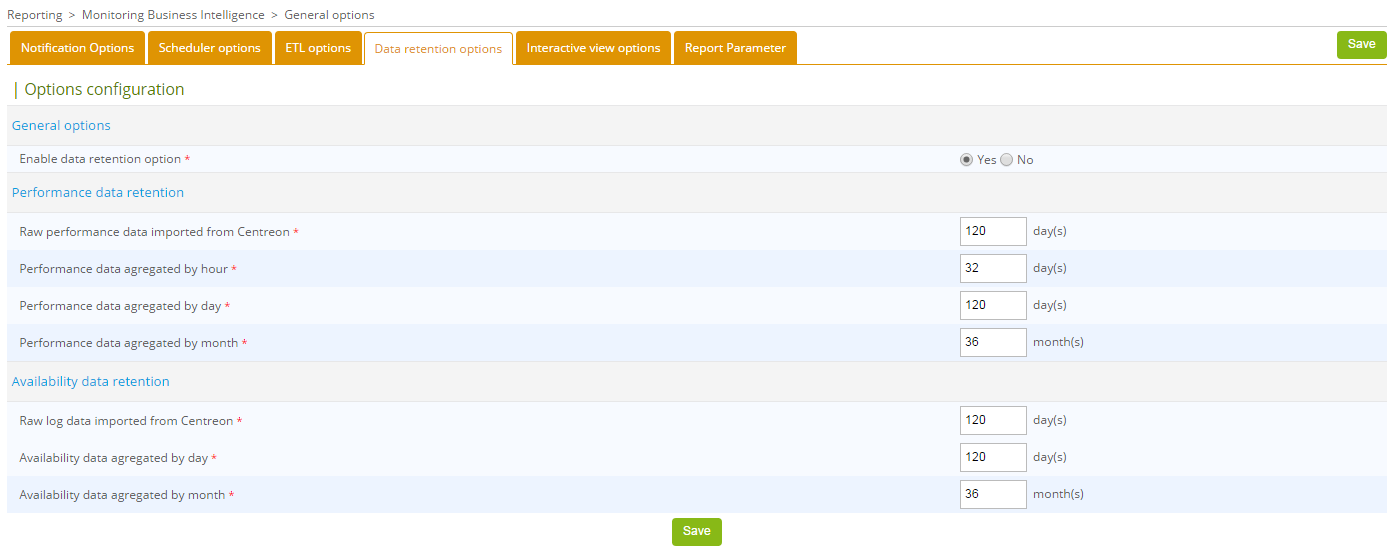
Under Reports > Monitoring Business Intelligence > General Options > Data Retention Options menu, data retention can be managed by:
- Type of data (availability, performance).
- Data granularity (raw data, hourly, daily or monthly values)
Before enabling the data retention options, make sure that the reporting engine uses a dedicated MariaDB server, and the corresponding option is set to Yes in the Reporting > Business Intelligence > General Options ETL Options menu.
Enable data retention management by selecting Yes, then set the configuration options (example below).
To enable automatic purging of old data, edit the cron file /etc/cron.d/centreon-bi-purge on the reporting server, then uncomment the following line:
#0 20 * * * root @CENTREON_BI_HOME@/*etl*/dataRetentionManager.pl >> @CENTREON_BI_LOG@/dataRetentionManager.log 2>&1
Avoid scheduled periods for statistical calculations with Centreon MBI ETL and report generation. You can run this cron daily or weekly, depending on the batch execution time and the load generated on the server.
- Alma / RHEL / Oracle Linux 9 / RHEL 9
- Debian 13
Restart the cron service:
systemctl restart crond
Restart the cron service:
systemctl restart cron
BEST PRACTICES: Select different retention periods depending on the granularity of the statistical data:
-
Aggregated values per hour are used to analyze a metric over a short period of time. They take up a lot of disk space. You may not need to keep these statistics for more than two or three months.
-
Beyond five or six months, you may only need to view the trend for availability or performance statistics. You could then retain daily aggregate data for up to six months, for example, and set up retention of monthly aggregate data for a period of several dozen months.
Step 5: Build the MBI database
Prerequisites
-
Before continuing, make sure you have installed the MariaDB configuration file as described above in the prerequisites.
-
Configure the ETL and enable data retention so that only the required data is imported and calculated.
-
Make sure that the data on the central server is ready.
-
Make sure that the gorgoned process works fine:
systemctl status gorgoned. If needed, restart it:systemctl restart gorgoned. -
Bear in mind that if you are building the MBI database for the first time, you have to import all of the data in one go. If you have a large amount of data and/or if you start the process late in the day, it's important to be aware that the database building phase might take a significant amount of time, possibly extending into the next day. This is why the daily build is disabled by default: in the /etc/cron.d/centreon-bi-engine cronfile, the following line is commented out. It must stay commented out until the initial build is complete, so as to avoid duplicate entries or other problems. You will reenable it at the end of the procedure.
#30 4 * * * root /usr/share/centreon-bi//bin/centreonBIETL -d >> /var/log/centreon-bi/centreonBIETL.log 2>&1If this line is not commented out (for example, if you are rebuilding the database), comment it out, then restart the cron service:
- Alma / RHEL / Oracle Linux 9 / RHEL 9
- Debian 13
systemctl restart crond
systemctl restart cron
Construction of statistics from historical data
Run the following command on the reporting server. This will:
- Delete any existing data from the reporting server.
- Import raw monitoring data from the central server to the MBI server (depending on retention settings).
- Fill tables containing availability statistics for hosts and services.
- Fill tables containing performance and capacity statistics for hosts and services.
/usr/share/centreon-bi/bin/centreonBIETL -r
You may want to run it in the background and redirect the script's output to a log:
nohup /usr/share/centreon-bi//bin/centreonBIETL -r >> /var/log/centreon-bi/centreonBIETL.log 2>&1 &
The output is displayed in your terminal or, if you ran the command in the background, in the /var/log/centreon-bi/centreonBIETL.log log file (for example, use tail -f /var/log/centreon-bi/centreonBIETL.log to follow it). You should see some lines appear with 4 parts like:
2025-08-01 13:34:16 - INFO - [SCHEDULER] >>>>>>> start
2025-08-01 13:34:16 - INFO - [SCHEDULER][IMPORT] >>>>>>> start
...
2025-08-01 13:35:18 - INFO- [SCHEDULER][IMPORT] <<<<<<< end
2025-08-01 13:35:18 - INFO - [SCHEDULER][DIMENSIONS] >>>>>>> start
...
2025-08-01 13:35:52 - INFO - [SCHEDULER][DIMENSIONS] <<<<<<< end
2025-08-01 13:35:52 - INFO - [SCHEDULER][EVENT] >>>>>>> start
...
2025-08-01 13:38:37 - INFO - [SCHEDULER][EVENT] <<<<<<< end
2025-08-01 13:38:37 - INFO - [SCHEDULER][PERFDATA] >>>>>>> start
...
2025-08-01 13:48:17 - INFO - [SCHEDULER][PERFDATA] <<<<<<< end
2025-08-01 13:58:17 - INFO - [SCHEDULER] <<<<<<< end
Reenable daily script execution
This step is mandatory. The daily calculation of statistics is disabled by default. If you skip this step, no daily statistics will be calculated, and no error will be displayed.
Once the data building process is complete, reenable the daily calculation of statistics:
-
On the reporting server, edit the /etc/cron.d/centreon-bi-engine file and uncomment the following line (remove the leading
#):#30 4 * * * root /usr/share/centreon-bi//bin/centreonBIETL -d >> /var/log/centreon-bi/centreonBIETL.log 2>&1The line should now look like this:
30 4 * * * root /usr/share/centreon-bi//bin/centreonBIETL -d >> /var/log/centreon-bi/centreonBIETL.log 2>&1 -
Restart the cron service on the reporting server:
- Alma / RHEL / Oracle Linux 9 / RHEL 9
- Debian 13
systemctl restart crond
systemctl restart cron
Make sure the centreonBIETL batch only starts once eventReportBuilder has ended on the monitoring server (check the cron file etc/cron.d/centreon on the monitoring server).
The installation of Centreon MBI is now complete. You can start creating jobs in order to generate reports. See the tutorial.
Monitor your MBI server with Centreon
It is strongly advised that you monitor your MBI server using the Centreon MBI connector.