Time periods
Definition
Time periods define a time interval for each day of the week. They enable the functionality of the scheduler over a given period of time. They apply to two types of actions:
- The execution of check commands
- The sending of notifications.
Configuration
To configure a time period, go to Configuration > Users > Time periods.
The button to the left of the description of each time period shows the active timeframes.
-
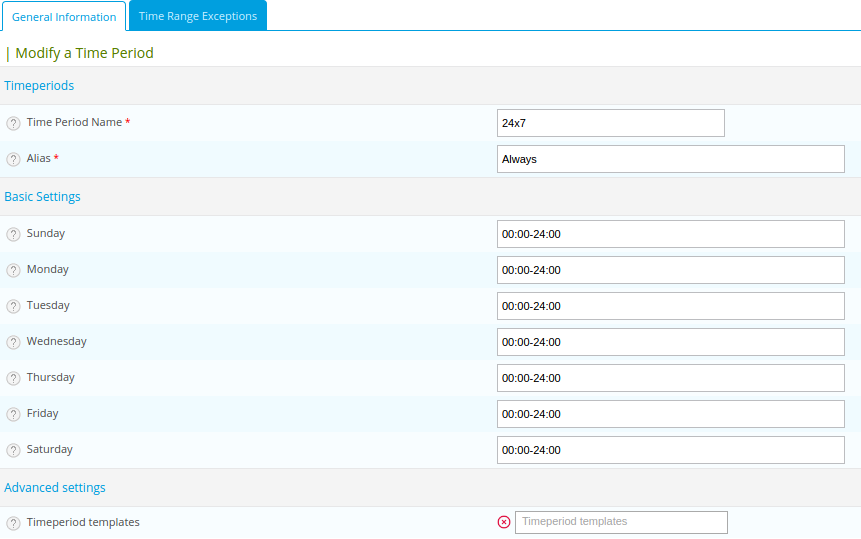
In the Time Period Name and Alias fields, enter a name and a description.
-
In the Basic settings section, for each day of the week, define the time periods during which the checks and notifications will be enabled. (Use the syntax described below.)
- These definitions are applied every week, indefinitely.
- If you leave the field blank for a specific day, there will be no monitoring on that day for actions to which this time period is applied.
-
Use the Time Range Exceptions tab to include or exclude specific days for a time period.
-
Once you have created your time period, you can use it:
- In the Check Period field for hosts, host templates, services and service templates.
- In the Notification Period field for notifications defined for hosts, host templates, services, service templates, contacts, or in the Escalation Period field for an escalation of notifications.
- In the configuration of other time periods. All time periods can be reused through the timeperiod templates
The Reset button deletes all unsaved changes.
Syntax of a time period
Use the following characters to define time periods:
- The character “:” separates the hours from the minutes, e.g.: HH:MM
- The character “-” indicates continuity between two time periods, e.g.: 9:00-13:00
- The character ”,” separates two time periods, e.g.: 9:00-13:00,14:00-17:00
Here are a few examples:
- 24 hours a day and 7 days a week: 00:00-24:00 (to be applied to every day of the week).
- From 8 AM to noon and from 2 PM to 6:45 PM on weekdays: 08:00-12:00,14:00-18:45 (to be applied to weekdays only).
- To not monitor during a whole day, leave the corresponding field blank.
Timeperiod templates
The timeperiod templates field allows you to reuse timeperiods previously created to add their configuration to other timeperiods.
-
For example, if you already created a timeperiod that includes saturday mornings, you can select it so the timeperiod you are editing also includes saturday mornings.
-
If you combine a timeperiod template that excludes Sundays and one that includes Sundays, Sundays will be included.
Time Range Exceptions tab
The Time Range Exceptions tab allows you to include or exclude exceptional days in the time period. The periods you define here overrides the definition of regular days defined in Basic Settings to do the opposite. For example if your time period includes mondays, adding a monday in the exception tab will cause that monday to be excluded. However, if your time period doesn't include mondays, adding a monday in the exception tab will cause that monday to be included.
Use case: An administrator wants to define a time period which covers the times when the offices are closed, i.e.:
- From 6 PM to 7:59 AM on weekdays
- Around the clock on weekends
- National holidays and exceptional closure days.
To be able to define the national holiday days and the exceptional closure days, it is necessary to use exceptions.
To add an exception, in the Exceptions field, click Add new entry. For each exceptional day, you will need to define a time period.
Use the following syntax to exclude whole days from the monitoring: 00:00-00:00.
The table below shows some possible examples:
| Day(s) | Time period | Meaning |
|---|---|---|
| january 1 | 00:00-24:00 | All day on the 1st of January, every year. |
| 2014-02-10 | 00:00-24:00 | All day on 10 February 2014 |
| july 1 - august 1 | 00:00-24:00 | All day, every day from July 1 to August 1, every year |
| november 30 | 08:00-19:00 | From 08h00 to 19h00 every November 30, every year |
| day 1 - 20 | 00:00-24:00 | All day from the 1st to the 20th of every month |
| saturday -1 | 08:00-12:00,14:00-18:45 | Every last Saturday of the month during opening hours |
| monday -2 | 00:00-24:00 | All day every second to last Monday of the month |
| june 6 - june 21 | leave blank | Do not monitor all day, every day from June 6th to the 21st |
| june 12 | 00:00-08:00,18:00-24:00 | Monitor every June 12th, except between 08h00 and 18h00 |
Exceptions are not taken into account in BAM, and in reports concerning BAM in MBI.