Journey overview
By clicking User Journey from the main menu, you will be taken to a page regrouping all the scenarios that have been created for your site.
This page gives a brief summary of the performance of each scenario.
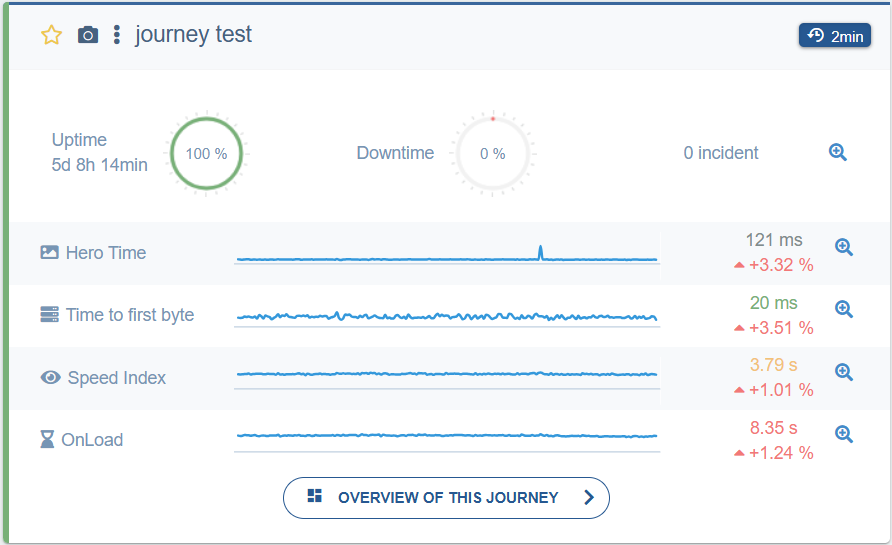
On each of these User Journeys you can:
- Add a journey to your dashboards by clicking the star icon.
- Save each journey's summary as a screenshot by clicking the camera icon.
- Access the Digest and Notification settings for each journey or its configuration by clicking the three dots.
- See and export the list of incidents on a journey by clicking the magnifying glass next to the number of incidents.
- See a more detailed graph for each of the metrics by clicking the magnifying glass next to each metric's graph.
Overview of a journey
The button Overview of this journey takes you to a more detailed breakdown of each aspect of this journey. You can click on each of the metrics on the Overview to get a per-step evaluation of it according to each metric.
The tabs at the top also allow you to better evaluate each step's performance.