Using graphs
A lot of the information gathered by Experience Monitoring is converted into graphs to make it easier to read. All graphs are interactive allowing you to zoom in or out and leave comments.
Graphs found in the overview pages of each module but also on your customized dashboards.
Every graph can be downloaded as a .png to facilitate sharing information. To do this, click the camera icon on the graph's header.
Colors used in graphs
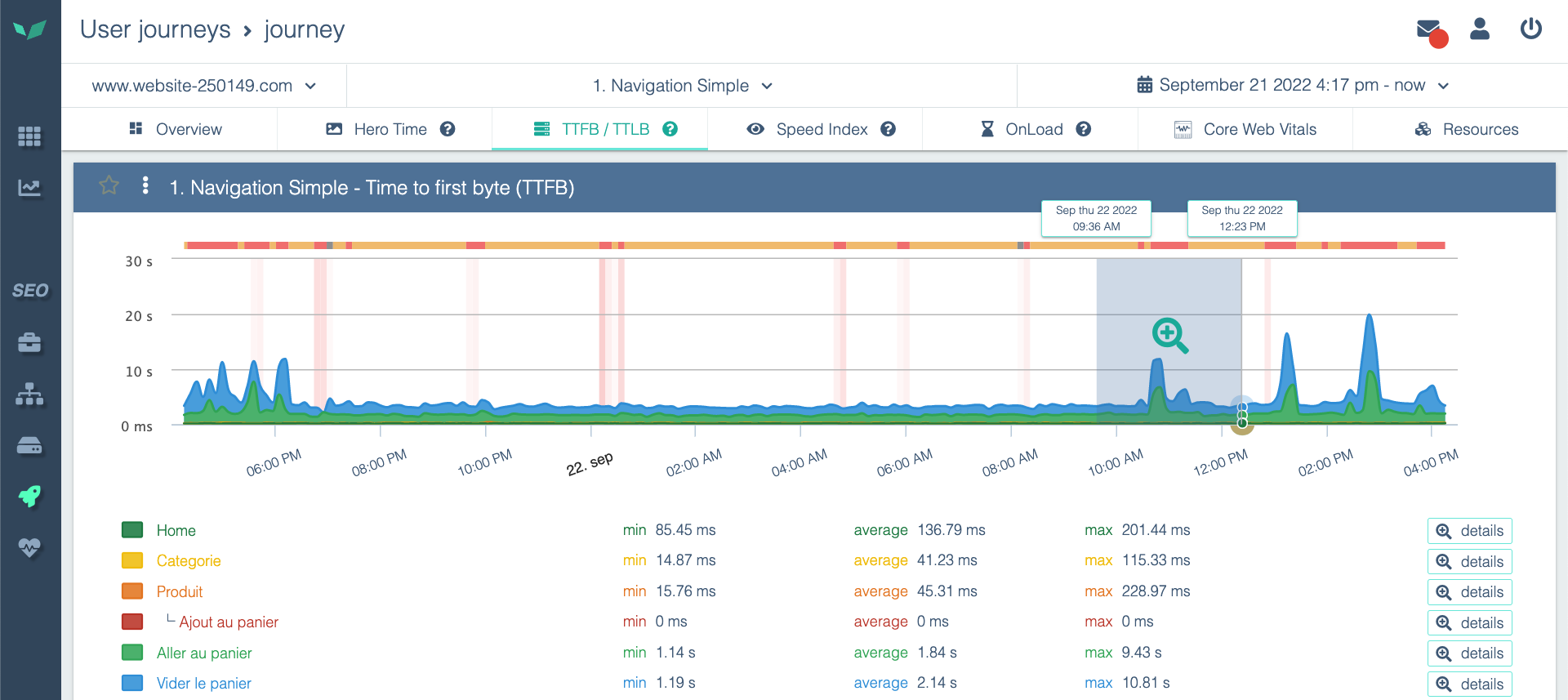
In addition to the color attributed to each metric in a graph, you may see red zones or grey zones.
- Grey zones indicates there is no information available for this time period. This is normal if you just configured your User Journey for example because there is no data prior to when the probe started running. Isolated grey zones are not cause for concern.
- Red zones zones indicates Experience Monitoring attempted to collect the data for this chart but failed. Isolated red spikes can be due to a large variety of reasons and shouldn't be cause for concern. Large red zones however indicate an issue over a period of time. Your site may be or have been down.
Manipulating and annotating the graphs
Zooming
Experience Monitoring graphs are interactive. You can zoom in on a time period by using the clicking and dragging from left to right on the graph and from right to left to zoom out.
Filtering
A chart can be composed of several cumulative statistics. You can choose to hide a metric or isolate it (only display this metric) to make the graph easier to read.
To do this, click on the metric in the legend of the chart or on the chart itself.
Annotating: event markers
Annotating with event markers lets you easily see whether a change in your metrics coincides with a deployment or configuration update.
Commenting
You can leave a comment on the graphs to relay information to colleagues or leave yourself a reminder. To do this, click inside of the graph but outside of any metric.
If you are having trouble clicking on the specific time you want to leave a comment on, try zooming or using the side arrows on the comment window to change the time one minute at a time.