User portal (CIAM)
The Centreon user portal is your central hub for managing who can access your Centreon Log Management instance. From here, administrators can create organizations, invite team members, and control access — while users can manage their profile and switch between Centreon applications.
Key concepts
Organizations
An organization defines a scope of resources you want to monitor. For example, you might create separate organizations for different regions (Europe, Asia) or environments (Production, Staging). Each organization is fully independent: it has its own CLM instance, its own users, and its own data.
Depending on your needs, you may have one or several organizations.
Roles
| Role | What they can do |
|---|---|
| Administrator | Manage the organization, invite and remove users, control access, open CLM |
| User | Access CLM, view and query logs, manage their own profile |
For administrators
Creating your account
- Go to the URL provided by the Centreon support team, then click Sign up.
- Enter your email address and a password, then click Continue. You'll be prompted to check your inbox.
- Open the confirmation email and click Confirm my account.
- Click Back to Centreon — you're now ready to set up your organization and invite your team.
Inviting users
- Go to Users, then click Invite user.
- Enter one or more email addresses.
- Click Invite.
Each invited user will receive an email with the subject: "You've been invited to join <organization>'s Centreon account". Your email address will be visible in this invitation.
Managing access
From the Users page, you can:
- View all users in your organization and their current status.
- Remove users who should no longer have access.
- Resend invitations to users who haven't accepted yet.
For users
Once your administrator has invited you, you'll receive an email invitation.
- In the email, click Accept invitation.
- Choose a password, then click Continue. The Centreon portal opens.
- Click the profile icon in the top right corner, then select Edit profile to complete your details (name, contact information).
Accessing CLM
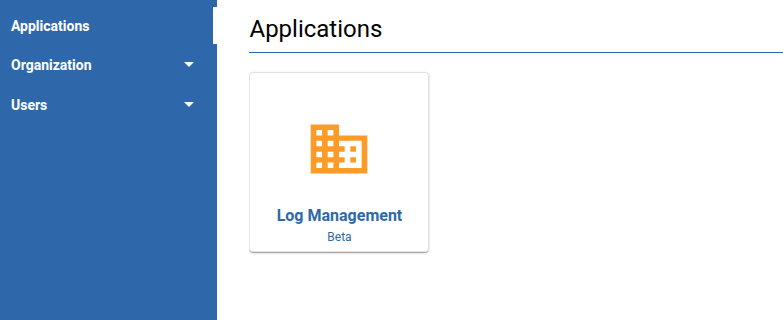
Once logged in to the portal, go to the Applications page and click the Centreon Log Management tile to open your CLM instance.
Tip: Bookmark your CLM instance URL for quick access. You can find it in the browser address bar after opening CLM from the portal.